Properties
The settings your add-on stores: define them in a list, draw them in panels, read and change them with nodes.
A property is a setting your add-on keeps: a checkbox, a number, a choice from a dropdown, a list of entries. Blender saves it with the file, shows it as a field in your panels, and your operators read it. Blender's own settings work the same way: the End Frame of a scene and the Width of a Bevel modifier are properties too.
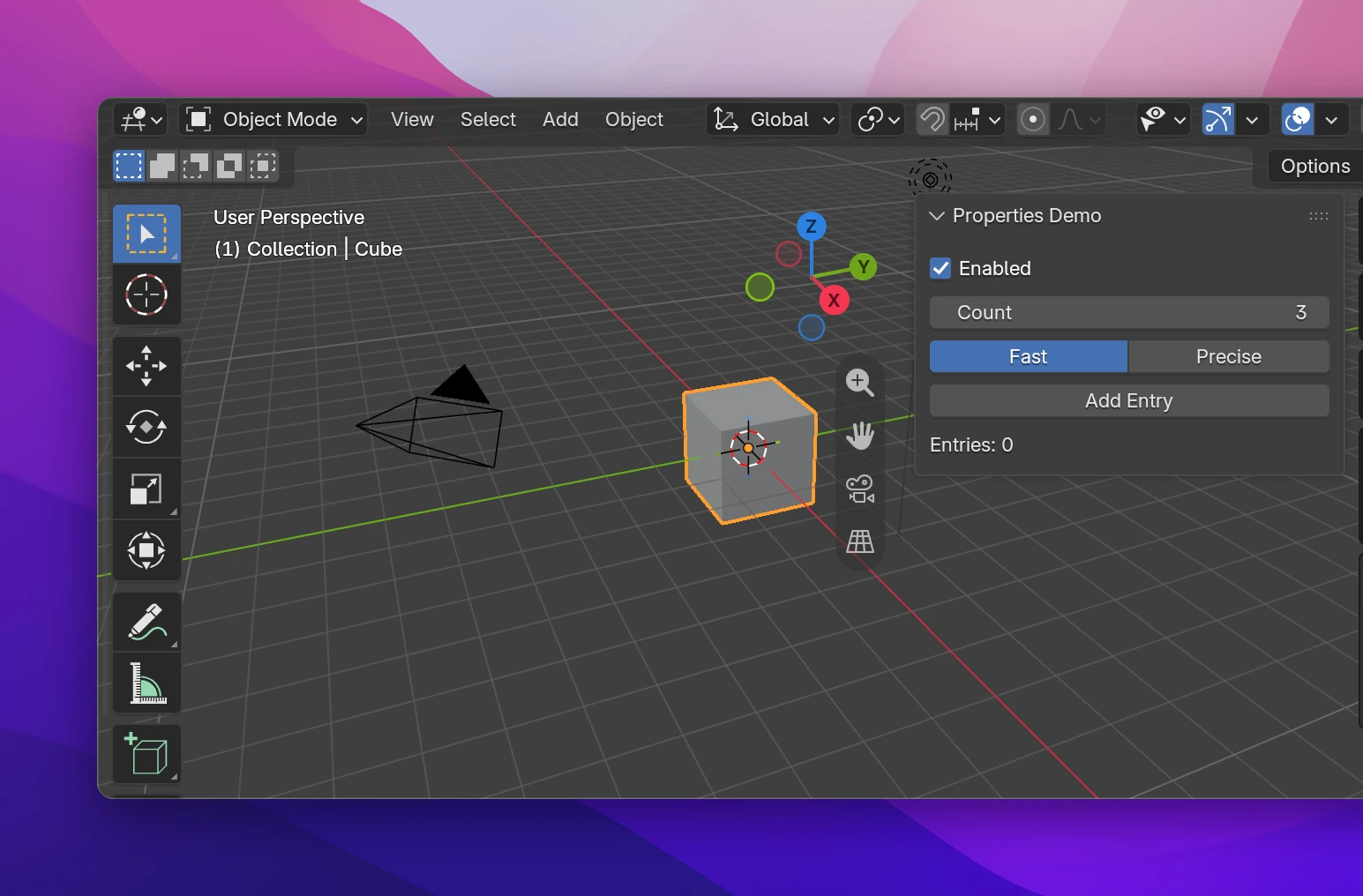
You define a property once, in a list. Nodes then use it: a field draws it, Get Property reads it, Set Property changes it, On Property Update runs when it changes.
Adding a property
In the node editor's sidebar (Scripting Nodes tab), open Addon Data › Properties and click +. The new property is a Float named Property.
Below the list, give it a Name (the label users see) and pick a Type, e.g. Integer.
Set its Default and, for numbers, limits. The panel and the nodes update right away.
Draw it in a panel with a field node (Add › Interface › Number Field for a number) and pick the property on it. See Fields and buttons.
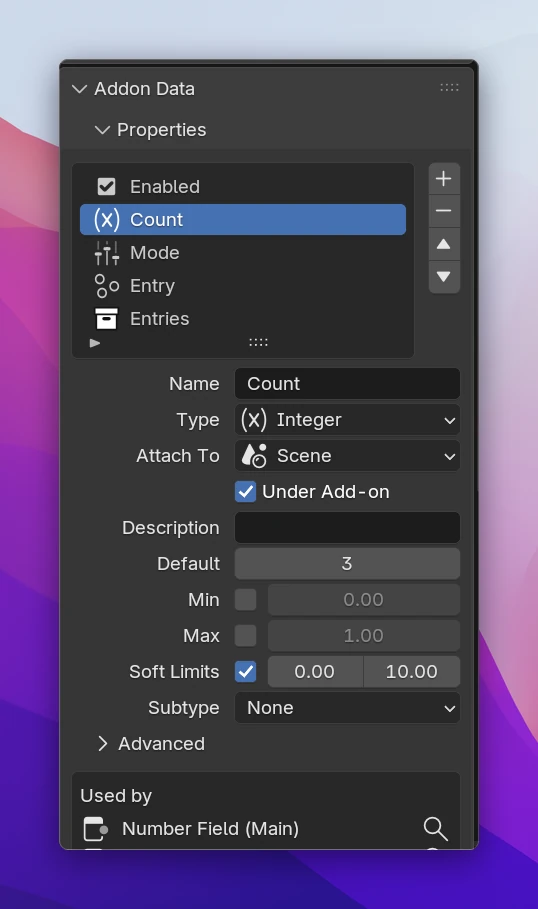
Below the settings, Used by lists the nodes using the property; the magnifier jumps to one. Renaming or changing a property's type keeps the nodes that use it, and a node whose property was deleted turns red.
Types
| Type | Holds | Drawn with |
|---|---|---|
| Boolean | True or False | Checkbox |
| Integer | a whole number | Number Field |
| Float | a decimal number | Number Field |
| Vector | 2 to 4 numbers: a location, a color, a size | Vector Field |
| String | text, a file path | Text Field |
| Enum | one item of a list of choices (or several, with Multiple) | Enum Menu |
| Pointer | one data-block (an object, a material, ...) or one item of a group | Pointer Field |
| Collection | a list of items of a group | UI List |
| Group | a set of properties used as the type of Pointer and Collection properties |
Where it's stored
Attach To chooses the data that holds the value. A property attached to Scene (the default) has one value per scene, one attached to Object a value on every object, so each object can have its own. Window Manager keeps one value for the whole session that isn't saved with the file: good for UI state like the open tab of your panel. There are more: Mesh, Material, Collection, World, Camera, Light, Armature, Image, Node Tree, Text, Bone, Pose Bone, Node, Strip, View Layer, Workspace, Curve, Grease Pencil, Brush, Action and Texture.
Under Add-on (on by default) puts the property into a group named after your add-on: scene.my_addon.count instead of scene.count. It keeps your settings together and away from other add-ons' names. Turn it off only if a script expects the property directly on the data.
When a node uses the property, its Data input (labeled with the type, e.g. Scene or Object) is the data to read it from. Left unconnected, it uses the current one:
| Attached to | Unconnected uses |
|---|---|
| Scene, View Layer, Workspace, Window Manager | context.scene, context.view_layer, ... |
| Object | context.object, the active object |
| Material, Collection | context.material, context.collection |
| Bone, Pose Bone, Node, Strip | the active one: context.active_bone, context.active_pose_bone, context.active_node, context.active_strip |
| Mesh, World, Camera, Light, Armature, Image, Node Tree, Text, Curve, Grease Pencil, Brush, Action, Texture | nothing: connect the data, or the node shows Connect the Mesh it belongs to |
Settings
| Setting | Types | |
|---|---|---|
| Description | all | The tooltip |
| Default | all but Pointer, Collection | The value a new scene or object starts with |
| Min, Max | Integer, Float, Vector | Hard limits: values outside can't be set |
| Soft Limits | Integer, Float, Vector | The range dragging a field covers; typing can go beyond it, up to the hard limits |
| Subtype | Integer, Float, Vector, String | How it's shown: Percentage, Angle, Distance, Color, File Path, Password, ... |
| Unit | Float | Length, Rotation, Time, Mass, ... shown with the scene's units |
| Precision | Float, Vector | Digits after the point |
| Values, Size | Vector | Float, Integer or Boolean values, 2 to 4 of them |
| Max Length | String | Characters allowed, 0 for any |
| Search Function | String | A function returning suggestions shown while typing. With an input, it gets the typed text |
| Items, Default, Multiple | Enum | The choices (name, identifier, description, icon each), the default item's identifier (empty: the first), whether several can be picked at once |
| Items Function | Enum | A function returning the items instead of the list, called when the dropdown opens: a list of names or of (identifier, name, description) tuples |
| Points To, Data Type | Pointer | Blender Data (an object, material, ... of Data Type) or one of your Groups |
| Poll Function | Pointer | A function that gets a data-block and returns True if it can be picked, e.g. only mesh objects |
| Group | Pointer, Collection | The group whose items it holds |
Advanced (closed by default) has the rest:
- Get Function and Set Function (Boolean, Integer, Float, Vector, String) change a value when it's read or written. Each gets the value as its first input and returns the value to use, e.g. a Set Function rounding to even numbers. They run often and not always on the main thread: keep them small and don't set other properties in them.
- Hidden hides it from the operator redo panel and from Python's property lists. Animatable (on by default) lets users keyframe it. Library Editable allows changing it on linked data. Skip Save (operator properties) forgets the value between runs of the operator.
- Python Name is the name in code, by default made from the name. Saved values are stored under it: set it to the old name before renaming a property that's already used in saved files.
Groups, pointers and collections
A Group is a set of properties used together, like the fields of one entry in a list. Select a group in the list to edit its own list of members below it. Groups only exist as add-on properties, and a group's members can't be groups (use a Pointer to another group instead).
A group isn't stored anywhere by itself. A Pointer property holds one item of it, a Collection property a list of items. A list of notes is a Collection Notes of a group Note with the members Title and Done.
- Add and remove items with the collection nodes, draw them with a UI List or Draw For Each.
- A member is read and set with Get Property / Set Property like any property; connect the item to its Data input, e.g. the New Item of Collection Add or a UI List row's Item. The input is labeled with the group's name.
Operator and preferences properties
Operators and the add-on's Preferences have their own properties, defined on the node instead of in Addon Data. Click Add Properties (Edit Properties once there are some) on an Operator or Preferences node, or select the node and use the sidebar's Node tab. The list and settings are the same as above, without Attach To.
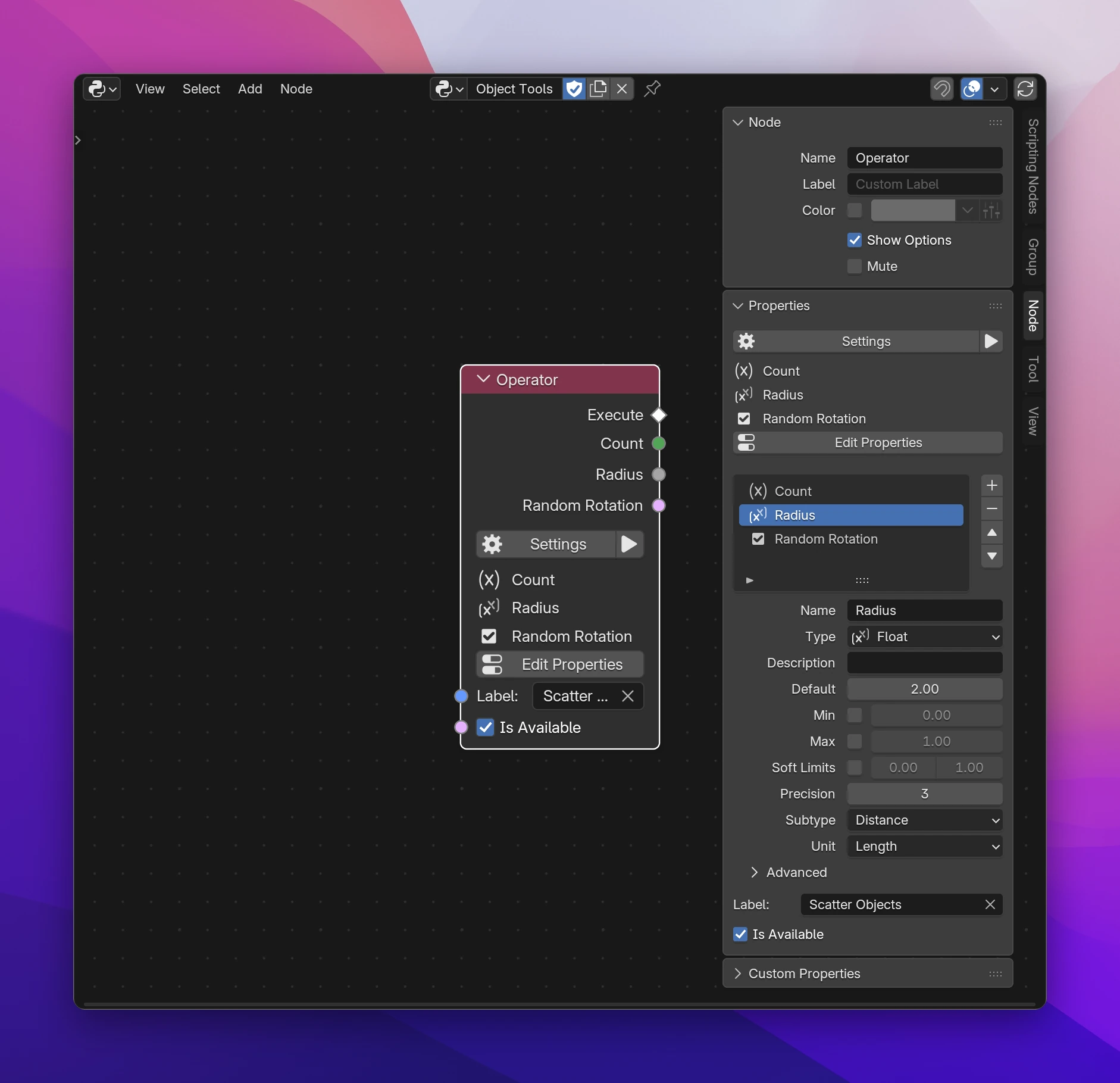
- An operator's properties are the options in its dialog and its redo panel. Button and Run Operator get an input for each, to run the operator with a value. Inside the operator's flows they're outputs of the Operator node. Get / Set Property use them only inside that operator: elsewhere the node says Only inside 'Scatter Objects'.
- Preferences properties are saved with the user's preferences, not the file, and can be read from anywhere.
Using properties
| Node | Does |
|---|---|
| Get Property / Set Property | Read or change a property |
| Checkbox, Number Field, Text Field, Vector Field, Enum Menu, Pointer Field | Draw it in a panel, menu or dialog (Fields and buttons) |
| On Property Update | Runs when it changes |
| Collection Add, Remove, Clear, Length, Get Item | Change and read Collection properties |
All of them, except On Property Update, can also use one of Blender's properties: switch the node to Blender and pick a data path.
Custom properties
Blender also stores values on data without defining them: the entries of the Custom Properties panels, or values other add-ons and scripts set with object["notes"] = .... Read and set those with Get Custom Property and Set Custom Property. For your add-on's own settings, define properties: they have a type, limits, a tooltip and a field. The two don't mix: since Blender 5.0, object["count"] doesn't reach a defined property count.
Limitations
- Changing a property's Python Name (or its name, without one) loses the values saved under the old name.
- Pointer properties can only point to data-blocks (objects, materials, ...), not to things inside them like a modifier or a bone. Store a name instead, or use a group.
- An Enum with an Items Function has no default: it starts at the first item the function returns.
- Collections have no update: watch the properties of their items instead.
Add-on properties are written to properties.py: one group per Attach To for those Under Add-on, registered on the data type.
class MY_ADDON_PG_entry(bpy.types.PropertyGroup):
    weight: bpy.props.FloatProperty(name='Weight')


class MY_ADDON_PG_scene_properties(bpy.types.PropertyGroup):
    count: bpy.props.IntProperty(name='Count', default=3, update=on_count_update)
    entries: bpy.props.CollectionProperty(name='Entries', type=MY_ADDON_PG_entry)


def register():
    bpy.types.Scene.my_addon = bpy.props.PointerProperty(type=MY_ADDON_PG_scene_properties)
    bpy.types.Object.notes = bpy.props.StringProperty(name='Notes')


def unregister():
    del bpy.types.Object.notes
    del bpy.types.Scene.my_addon
Only settings that differ from Blender's defaults are written. Operator and Preferences properties are annotations in that class. Using a property writes its path: context.scene.my_addon.count, context.object.notes, self.radius inside the operator.