Data paths
Find the path to any of Blender's data or settings, pick it in the browser or copy it from Blender.
A data path is the way from a start to the data you want: Active Object › Modifiers › Bevel › Width. In Python it's written context.active_object.modifiers['Bevel'].width. The Blender Data node, Blender Function and every property node in Blender mode store one, and you don't have to type it: pick it in the path browser, or copy it from any field in Blender.
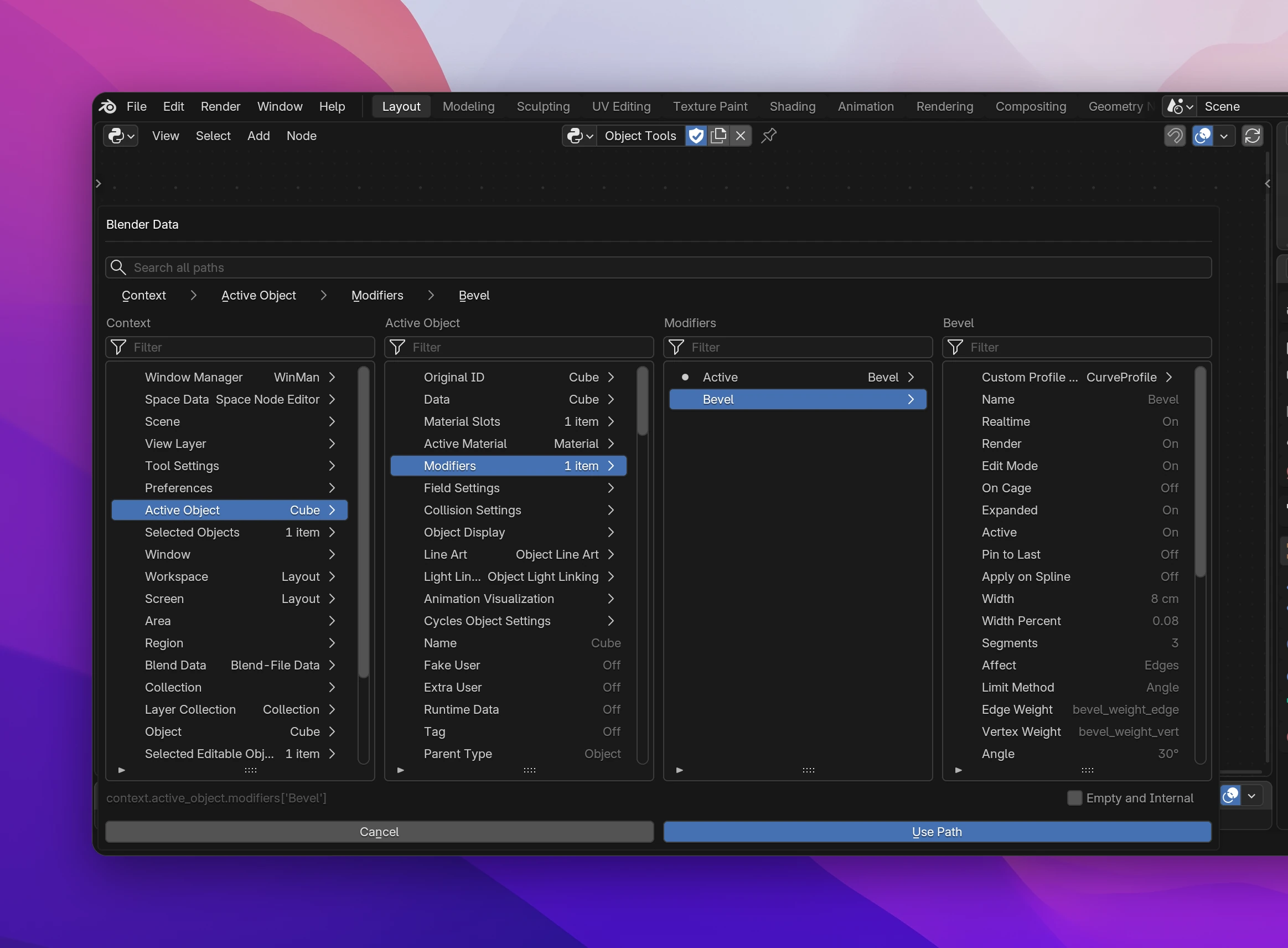
The path browser
Click the path button on a node (it reads Pick Data while the path is empty) to open the Blender Data browser. It shows the data of the open file in columns, like a file browser: one column per step of the path, the entry the path continues with highlighted.
Pick where the path starts in the Start column: Context (what's active right now), Blend File (everything in the file) or Data Input, the data connected to the node's Data input. From the Data Input, the browser shows the data of the connected node, or what its type has.
Click entries to go into them. Entries with an arrow open (objects, modifiers, lists); the others are values, shown as they are right now. The steps above the columns (Context › Active Object › Modifiers) take you back.
Click Use Path (or press Enter). The node's sockets change to match: the output gets the type of the value, and each list item on the way gets an input.
The browser opens where the node's path ends, so you can go back up and pick something next to it. The line under the columns shows the path as it's written in the add-on, e.g. context.active_object.modifiers['Bevel'].
- Filter above each column hides the entries without those words.
- Search all paths at the top finds data by name. It first looks through the real data below where you are (
bevel widthfrom the active object finds its Bevel modifier's width), then lists every path from the start that matches. The last word names what you're looking for:partilists the particle systems and the properties named after particles, not everything inside them. Words before it narrow it down (particle density). A query with dots searches from where the part before the last dot leads:active_object.active_material.lists everything on the active material. - Empty and Internal also shows empty data and read-only values, which are hidden by default.
- When the data isn't there right now (no active object, nothing connected), a column lists what the type has instead, without values, and says why.
Nodes that need a property (Set Property, the fields) can only use a path that ends at one. A Checkbox only takes a boolean, a Number Field a number; the browser says This node needs a property: pick a value when the path ends somewhere else. Blender Function lists functions too, with () after their name.
Items of a list
[] in a path picks one item of a list. Each [] adds an input to the node, with an icon in front that chooses how the item is picked:
| Icon | Picks | Input |
|---|---|---|
| Index | the item at a position: 0 is the first, -1 the last | Integer |
| Name | the item with a name, e.g. the modifier called "Bevel" | String |
| Active | the list's active item, for lists that have one (modifiers, vertex_groups, uv_layers, ...) | none |
The inputs can be connected, so the name or index can come from a property or a loop.
Copying paths from Blender
You don't have to find the path yourself. Right-click any field in Blender and choose Copy Data Path for Scripting Nodes (Blender's own Copy Full Data Path works too). Then click the paste button next to the path on a node, or add a new node with Add › Blender Data › Paste Data Path.
Pasting turns the path into steps and inputs:
bpy.data.objects["Lamp"].data.energystarts at Blend File, and each[...]becomes an input with its name (Lamp) or index.- Blender copies data you have selected by name: the scene as
bpy.data.scenes["Scene"], an object asbpy.data.objects["Cube"]. When that's the current scene, the active object, the current screen, window manager or workspace, it's pasted ascontext.scene,context.active_objectand so on, so the add-on works in other files too. - A vector field copies the component you clicked (
location[2]); the paste uses the whole vector. - Settings Blender has no full path for (tool settings, editor settings) are pasted to start at the node's Data input, with its type set. Connect the data they belong to.
Blender's properties on property nodes
Get Property, Set Property and the fields (Checkbox, Number Field, Text Field, Vector Field, Enum Menu, Pointer Field) use one of your add-on's properties by default. The button next to the property picker switches them to Blender: then they take a path that ends at one of Blender's properties.
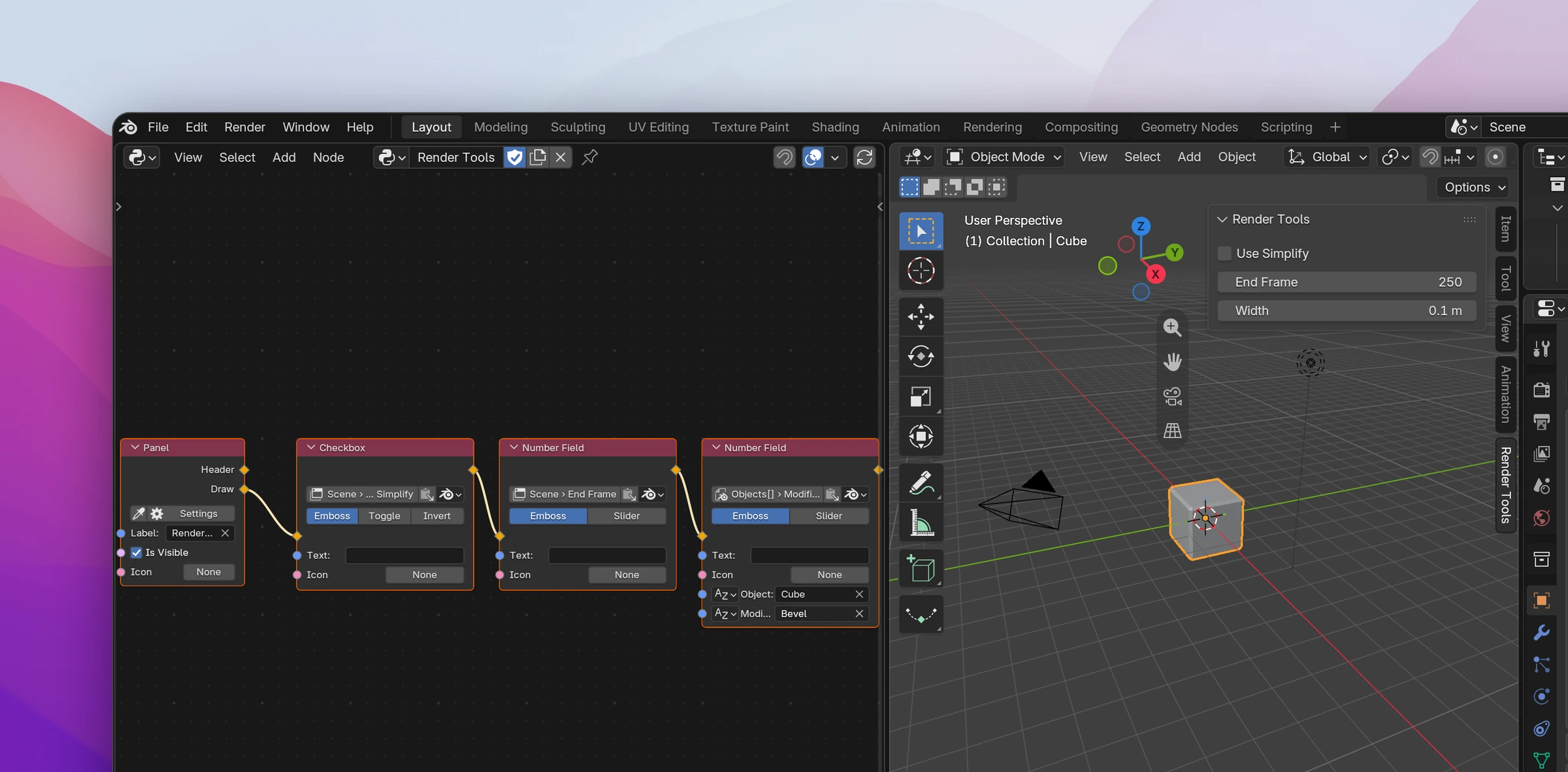
The data before the last step is the owner, the last step the property. Scene › Render › Use Simplify sets context.scene.render.use_simplify. With a path that starts at the Data input, connect the owner: a modifier, an object from a loop.
objects["Cube"], only work in files that have that object. For an add-on others use, start at the context (the active object, the scene) or connect the data.Problems with a path
A step that doesn't exist on the data before it shows under the path button (Object has no 'widht'), and the node shows an error until it's fixed. This happens when Blender renames a property or when you change the data a path starts from to another type. Open the browser and pick the path again.