Assets
Ship files and folders with your add-on, like images, .blend files or presets, and get their path with the Asset node.
Assets are files your add-on needs at runtime: a .blend file with materials to append, images, presets, a JSON file with data. Add them to the Assets list and they're copied into the add-on's assets folder, in the live add-on and in every export. The Asset node gives the path of one, wherever the add-on is installed.
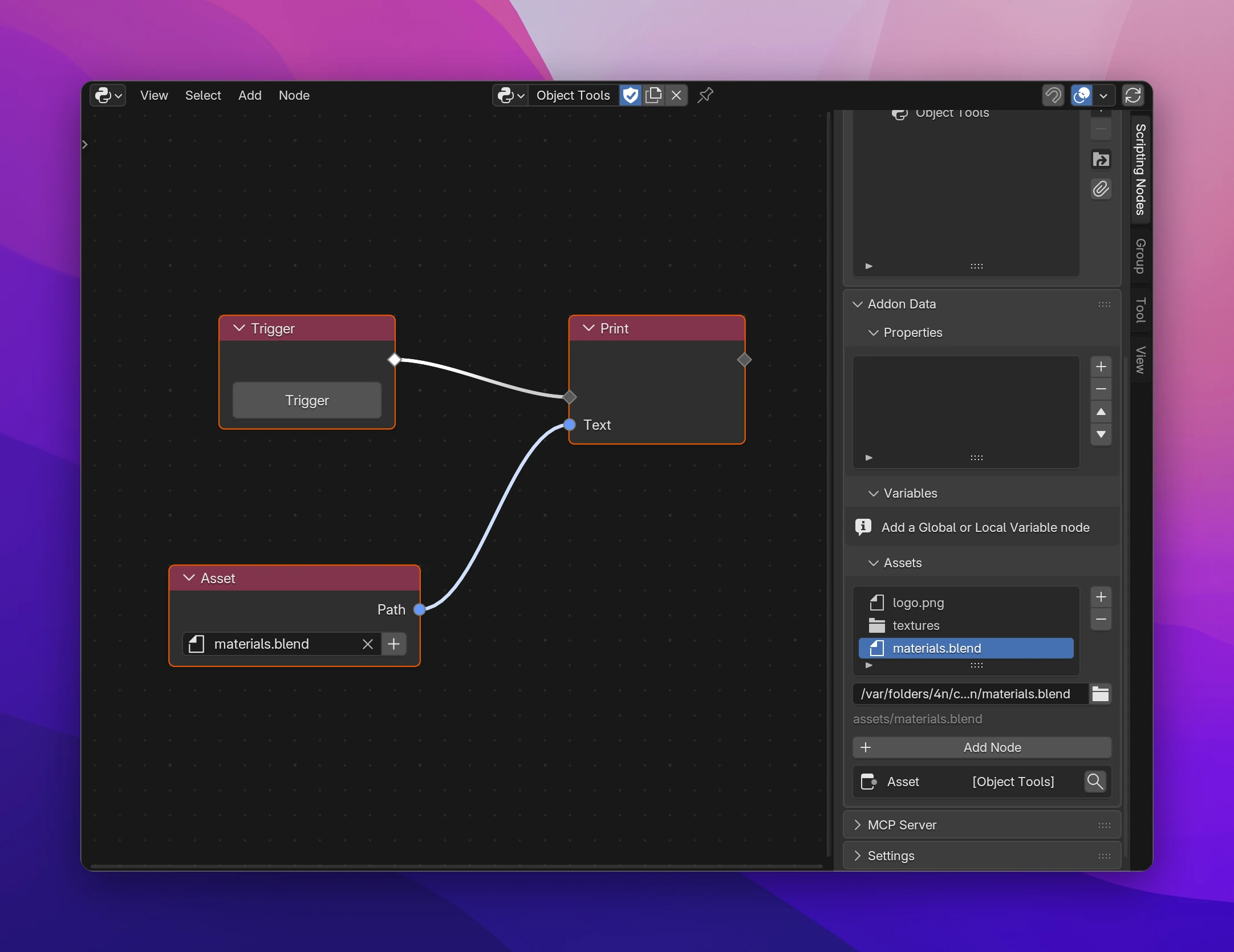
Adding an asset
Add the file
In the node editor's sidebar, open Scripting Nodes › Addon Data › Assets and click +. Pick a file in the file browser. To add a whole folder, go into it and check Whole Folder: the folder the browser shows is added with everything in it.
The Assets list
- The name in the list is the file's name in the
assetsfolder. Double click to rename it. Two assets with the same name (ignoring case) get a number:logo_2.png. - Below the list, the selected asset's Source: the file or folder that is copied. The gray line under it is its path in the add-on (
assets/materials.blend). - Relative Path (in the file browser, on by default) stores the source relative to the
.blendfile, so the project still works when you move its folder. It needs a saved.blendfile. - The nodes using the asset are listed below Add Node, with a button to jump to each.
- − removes the asset from the add-on. The file itself stays where it is.
Scripting Nodes watches the sources. Change the file (save over the image, add a file to the folder) and the add-on gets the new version a moment later. Files are compared by size and modification time and only copied when they changed, so big assets don't slow down rebuilds.
A folder is copied with its subfolders, leaving out __pycache__, .DS_Store and Thumbs.db.
The Asset node
Asset (Add › Files › Asset) has one output, Path (String). Pick the asset in its search field. + next to the field adds a new asset and picks it.
The node shows an error when:
- no asset is picked: Pick an asset;
- its asset was removed from the list: The asset was removed from the add-on;
- the source can't be copied: Save the .blend file first (the path is relative to it), or <path> doesn't exist. The same message shows in the Assets list.
Limitations
- Treat assets as read-only. When someone updates your add-on, its folder is replaced, and anything written into
assetsis lost. Save user data elsewhere, for example in Blender's user folders. - Everything in the list goes into the exported zip. Large files make the download large.
The Asset node's Path is built from the module's own location, so it works wherever the add-on is installed:
import os

path = os.path.join(os.path.dirname(__file__), "assets", "materials.blend")
For a node tree in a folder, one os.path.dirname() is added per folder level, so the path still starts at the add-on's folder.