Creating functions
Turn nodes into a function, create an empty one, and put a function's nodes back.
The quickest way to a function: select the nodes you want to reuse and press Ctrl+G. They move into a new function, and a Function node calling it takes their place. Links that crossed the selection become the function's inputs and outputs.
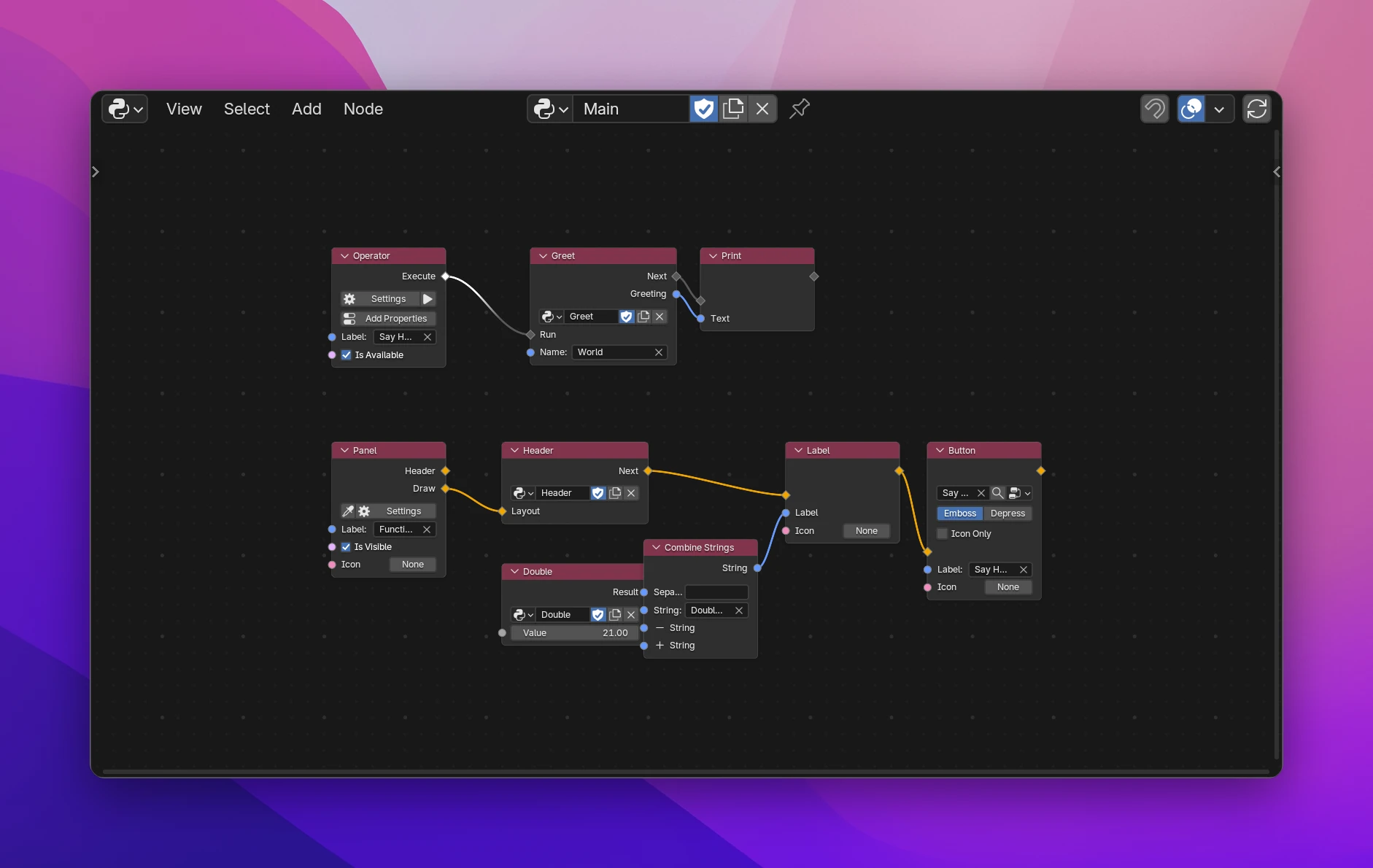
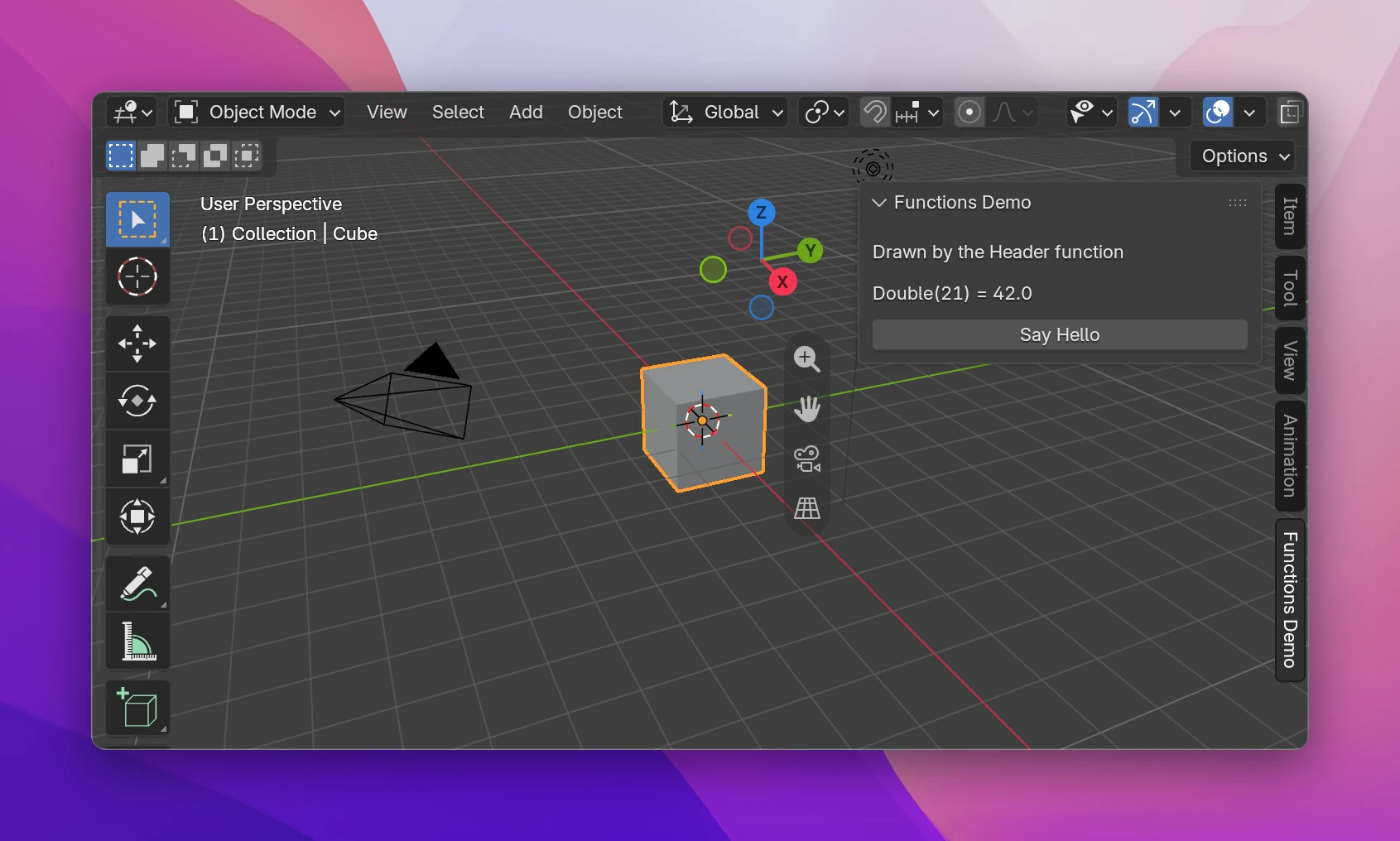
Make Function
Select the nodes that belong together, e.g. a Combine Strings and the Print that uses it.
Press Ctrl+G (Make Function).
The editor opens the new function, named Function. Rename it in the header's name field or in the Files list. Ctrl+Tab goes back to the tree you came from.
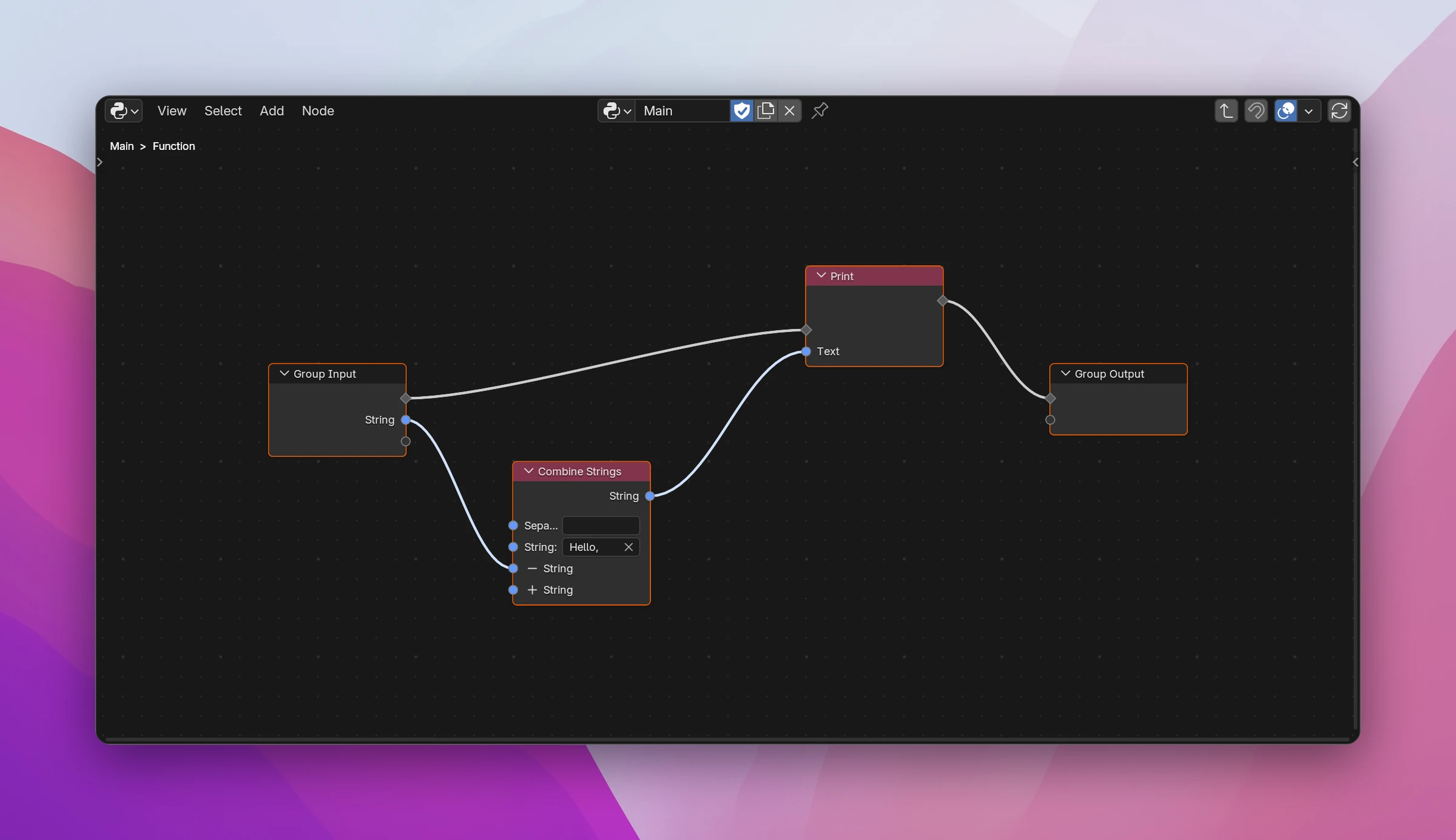
What Make Function does with the links that crossed the selection:
- Each outside socket linked into the selection becomes one input of the function, linked from Group Input inside. Several links from the same socket share one input.
- Each socket of the selection linked to the outside becomes one output, linked to Group Output. A data output is named after the socket it was linked to outside.
- Flow links become flow inputs and outputs, so the function runs as a step of the flow it came from.
- The Function node is linked like the nodes were, so the tree works as before.
The moved nodes keep their settings, frames and links between each other, and nodes elsewhere that pick them (a Button picking an operator, a Get Variable picking a variable) still find them. The new function goes into the same folder of the Files list as the tree it came from.
Nodes that start code Blender runs can't go into a function: an Operator, a Panel, a Trigger, an event. Make Function stops with "start code Blender runs, a function can't contain them: deselect them first". Select the nodes after them instead.
Ungroup
Ctrl+Alt+G (Ungroup) does the opposite for the selected Function nodes: it copies the function's nodes into this tree where the Function node was, links them to what the Function node was linked to, and removes the Function node. Values typed into the Function node's unconnected inputs are copied to the sockets they fed inside.
The function itself stays, for the other Function nodes calling it. Delete it in the Files list if nothing uses it anymore.
New Function
To start with an empty function:
- Click New on a Function node with no function picked. The new function goes into the same folder as the tree with the node.
- Or use + › Function in the sidebar's Files list. It goes into the folder selected there.
A new function has a Group Input with a Run flow and a Group Output with Next, linked to each other. Add nodes between them, and add data inputs and outputs in the sidebar's Group tab (Inputs and outputs).
Moving around
- Tab opens the function of the selected Function node. A breadcrumb at the top left of the editor shows where you are (
Main > Greet). - Ctrl+Tab goes back up one level.
- Add › Functions lists every function of the add-on; picking one adds a Function node set to it.
Functions are listed in Files with the other trees, with a different icon. A function no Function node calls is marked unused. Select a function there to see the nodes calling it under Used by; the magnifier next to one jumps to it. Deleting a function that's still called asks first; the Function nodes calling it then show "Pick a function".
Limitations
- Make Function and Ungroup move nodes through Blender's node clipboard. Whatever you copied with Ctrl+C before is replaced.
- A function can't call itself, directly or through other functions. The picker on the Function node leaves those out; a pasted node that does it shows "can't call itself".
- Blender's own Make Group and Ungroup operators only work in Blender's built-in node trees. In a Scripting Nodes tree, use the shortcuts above.