Panels
Add panels to the 3D Viewport's sidebar, the Properties editor and other editors.
A Panel node (Add › Interface › Panel) adds a panel to Blender, like the Transform panel in the 3D Viewport's sidebar. The nodes connected to its Draw output are the panel's contents, drawn from top to bottom. A new Panel shows up in the 3D Viewport's sidebar (press N), in a tab with your add-on's name.
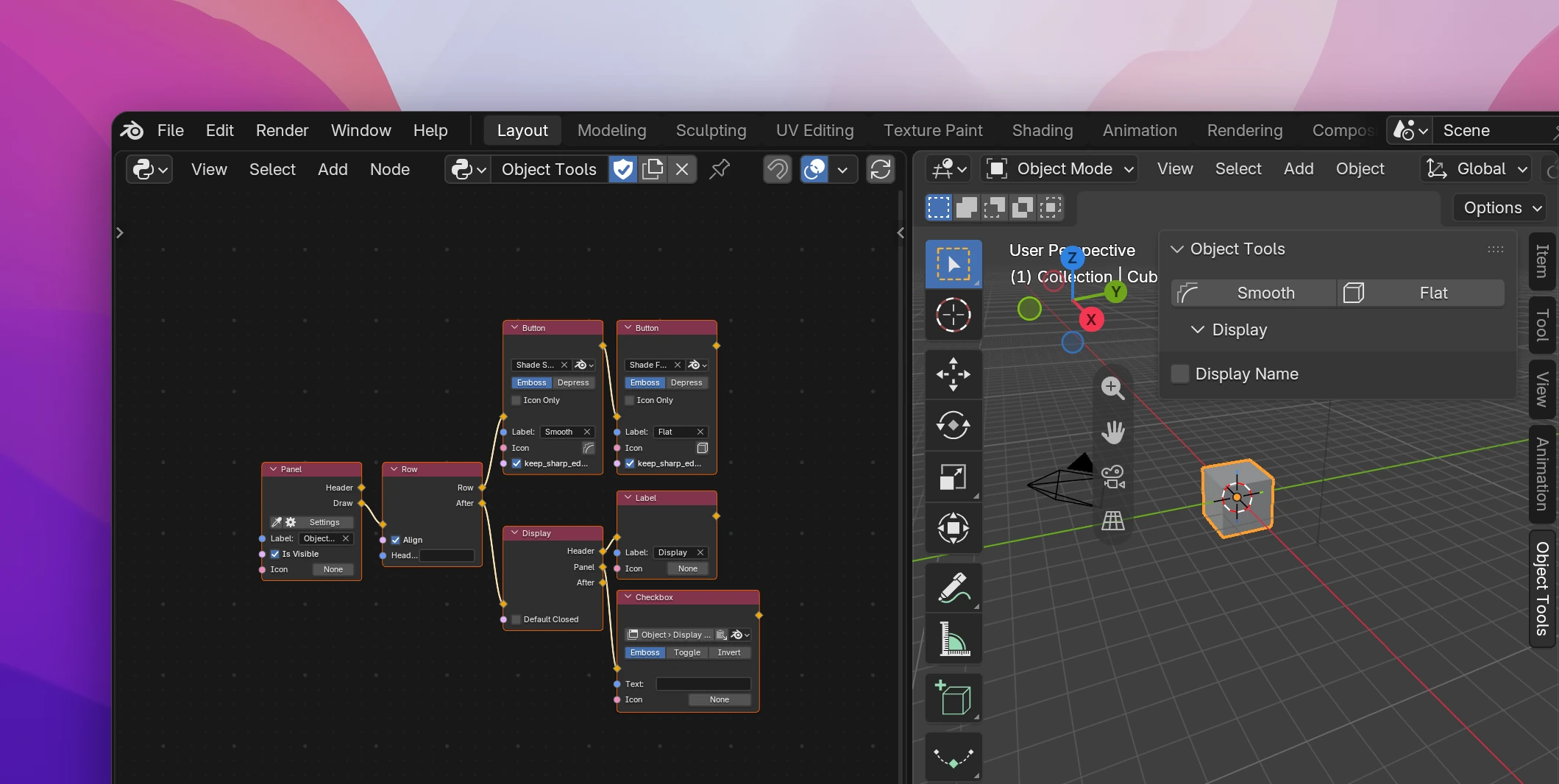
Making a panel
Add a Panel node and type the panel's title into Label.
Connect what it should show to Draw: a Button, a field for a property, a Label. Connect the next node to the output of the previous one, and each draws below the one before.
Open the 3D Viewport's sidebar (N) and click the tab with your add-on's name. The panel updates while you edit the nodes.
To put things side by side or in boxes, use the layout nodes.
Where a panel goes
Every panel in Blender lives in a place made of three parts:
| Part | What it is | Examples |
|---|---|---|
| Space | The editor | View 3D (the 3D Viewport), Properties, Node Editor, Image Editor |
| Region | The part of the editor | Ui is the sidebar (N panel), Window the main area, Header the header (popovers only) |
| Context | Only in the Properties editor: its tab | Object, Material, Render, Scene, World |
So a panel in the Object tab of the Properties editor is Space Properties, Region Window, Context Object. The default is the 3D Viewport's sidebar: Space View 3D, Region Ui.
There are two ways to set the place:
- Pick it. Click the eyedropper on the node. Every place in Blender that can hold a panel gets a red Pick This Location button (in sidebars, under a Pick Location tab). Go to the editor you want and click it. Cancel Picker on the node stops picking.
- Set it. Click Settings on the node, open Location and choose the space, region and context from the dropdowns. They list every place where Blender or an add-on has a panel.
The sidebar tab
Sidebar panels sit in a tab. Settings › Tab is the tab's name; empty uses your add-on's name (from the add-on settings). Panels with the same tab name share a tab, also with Blender's: type Item or Tool to add your panel to those tabs.
The Panel's Icon input is the icon of the sidebar tab, shown when Blender draws the tabs as icons (Blender 5.2 and later; older versions ignore it). It's only there for sidebar panels.
Panel settings
Settings on the node opens a popup with everything that isn't an input:
| Setting | Does |
|---|---|
| Default Closed | The panel starts collapsed |
| Hide Header | No title bar: the panel can't be collapsed or dragged, its contents sit directly in the region |
| Order | Sorts the panel among others in the same place: higher values go lower |
| Tab | The sidebar tab (Region Ui only), see above |
| Location | Space, region and context, see above |
Inputs and outputs
| Socket | |
|---|---|
| Label | The panel's title |
| Is Visible | Shows the panel only while it's True, e.g. only when the active object is a mesh. Connect a condition to it |
| Icon | The sidebar tab's icon |
| Header | Draws into the title bar, next to the title. Things drawn here sit in a row, e.g. a checkbox that turns a feature on, like Ambient Occlusion in the render settings |
| Draw | The panel's contents |
Is Visible is checked often while Blender draws, so keep what's connected to it fast and free of side effects.
Subpanels
A Subpanel (Add › Interface › Subpanel) is a collapsible section inside a panel, like Delta Transform inside Transform.
| Socket | |
|---|---|
| Default Closed | The section starts collapsed |
| Header | The section's title bar. A subpanel has no title of its own: connect a Label here |
| Panel | The contents, drawn while the section is open |
| After | Continues below the subpanel |
Blender remembers per subpanel whether it's open, by an id made from the node's label (F2, or Label in the sidebar's Node tab) and unique within the add-on.
A subpanel works directly in a panel's layout (or after other nodes in it), not inside rows, columns or boxes.
Panels elsewhere
- Popover draws a button that opens a panel as a popup, see Menus.
- Open Menu and a Shortcut set to open a menu can open a panel at the mouse too.
- To add contents to one of Blender's existing panels instead of making a new one, use Add to Panel.
Redrawing
Blender redraws a panel when the mouse moves over it and when a property it shows changes. Values that change without that, from a timer, a handler or a variable, can stay outdated until the next redraw. Put a Redraw node (Add › Interface › Redraw) in the flow after the change. Its Editors dropdown picks the editor type to redraw, All Editors by default.
Limitations
- A panel's place is fixed when the add-on registers. To show it only sometimes, use Is Visible.
- Drawing runs many times per second. Don't change data in a panel's flow (Set Property, operators that edit data): Blender doesn't allow it there and shows an error. Use a Button that runs an operator instead.
- Only places that already hold a panel in Blender are offered in the location dropdowns and the picker.
The panel from the screenshot, with Default Closed on:
class OBJECT_TOOLS_PT_object_tools(bpy.types.Panel):
    bl_label = 'Object Tools'
    bl_space_type = 'VIEW_3D'
    bl_region_type = 'UI'
    bl_options = {'DEFAULT_CLOSED'}
    bl_category = 'Object Tools'

    def draw(self, context):
        row = self.layout.row(align=True)
        row.operator('object.shade_smooth', text='Smooth', icon='MOD_SMOOTH')
        row.operator('object.shade_flat', text='Flat', icon='MESH_CUBE')
        header, panel = self.layout.panel('OBJECT_TOOLS_PT_display')
        header.label(text='Display')
        if panel:
panel.prop(context.object, 'show_name')- The class name comes from the Label. Order becomes
bl_order, Hide Header'HIDE_HEADER'inbl_options, the contextbl_context, the tab iconbl_icon. - Is Visible becomes a
poll()class method, Header adraw_header()method. - Subpanel uses
layout.panel(), so no extra Panel class is registered for it. - Redraw calls a helper that runs
area.tag_redraw()on the matching areas of every window.