Lists
Show a collection as Blender's list widget, or draw a row per item.
Two nodes draw the items of a collection, like the objects in the file or the entries of one of your Collection properties. UI List is Blender's list widget with a selected item, like the lists of materials or vertex groups. Draw For Each draws a flow once per item, without a frame or selection.
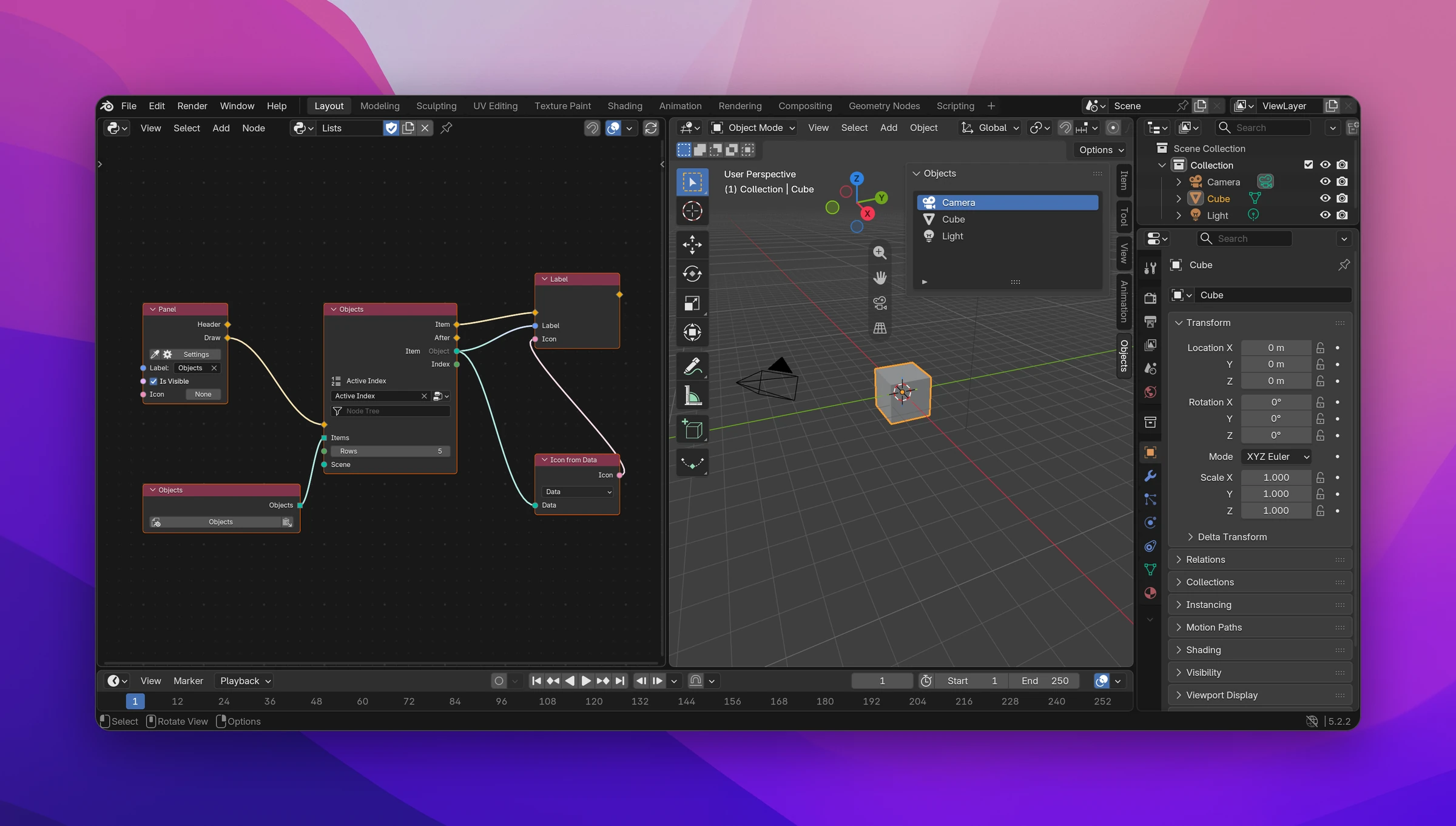
UI List
Add an Integer property for the selected item's index, e.g. an add-on property Active Index on the Scene (Properties).
Add a UI List (Add › Interface › UI List) into a panel's flow and connect the collection to Items, e.g. Objects from a Blender Data node or one of your Collection properties.
Pick the Integer property under Active Index on the node. With the Blender button next to it you can use one of Blender's Integer properties instead.
Without anything connected to the Item flow, each row shows the item's name (editable with a double click). Connect nodes to Item to draw the rows yourself: they run once per row, with the row's item and index as outputs. Each row is a row layout, so several nodes sit side by side.
| Socket | |
|---|---|
| Items | The collection to list. It has to be a collection property of some data (bpy.data.objects, scene.my_addon.entries), not a Python list |
| Rows | How many rows the list shows before it scrolls (5) |
| Scene (named after the data the index property is attached to) | Where the index is stored. Leave it empty for the obvious one: the current scene, the active object |
| Item (flow) | Draws one row |
| After | Continues below the list |
| Item (data) | The row's item, typed from the connected collection (an Object for objects) |
| Index | The row's position in the collection |
Filtering and sorting
The arrow at the bottom of the list opens its filter options: filter by name, sort by name, reverse. These work without any setup.
To show only some items, pick a Filter Function on the node (the field with the funnel icon): a function that gets an item and returns a Boolean, e.g. whether an object is a mesh. Only items it returns True for are listed. The name filter and sorting still work on top of it.
Adding and removing items
A UI List shows a collection but has no add or remove buttons of its own. Put buttons next to or below it that run operators: for your own Collection properties, operators using Collection Add and Collection Remove (see Properties), with the Active Index property to know which item to remove.
Draw For Each
Draw For Each (Add › Interface › Layouts › Draw For Each) draws its Loop flow once per item of List: a row per object, a button per material. Item and Index are the current item and its position. After continues below, once.
Unlike UI List, it takes any list (a Python list from a function too), has no selection or scrolling, and draws every item. Inside the loop, put a Row first to lay out each item's nodes side by side, and a Set Context Data to tell a button which item it belongs to.
The Layouts screenshot shows a Grid with a Draw For Each drawing a label per object.
Limitations
- A panel draws many times per second. A long collection in Draw For Each draws every item each time; use a UI List for collections that can get long, since it only draws the visible rows.
- The UI List's Items has to end at a collection property (
something.attribute), so Blender can store and filter it. A list from a function only works with Draw For Each.
A UI List becomes a bpy.types.UIList class with a draw_item() method (the Item flow) and, with a Filter Function, a filter_items() method. Where the node is, it's drawn with:
layout.template_list('OBJECT_TOOLS_UL_objects', '', bpy.data, 'objects', context.scene, 'active_index', rows=5)Draw For Each is a for loop in the draw function:
for item in bpy.data.objects:
    layout.label(text=item.name)
With Index connected, it loops over enumerate(...).