Adding to Blender's interface
Put buttons and fields into Blender's own menus, panels and headers.
Add to Menu, Add to Panel and Add to Header (Add › Interface) draw into Blender's existing interface instead of making a new panel or menu: a button in the 3D Viewport's Object menu, a section in a panel of the Properties editor, a button in an editor's header. The nodes connected to Draw are added to it.
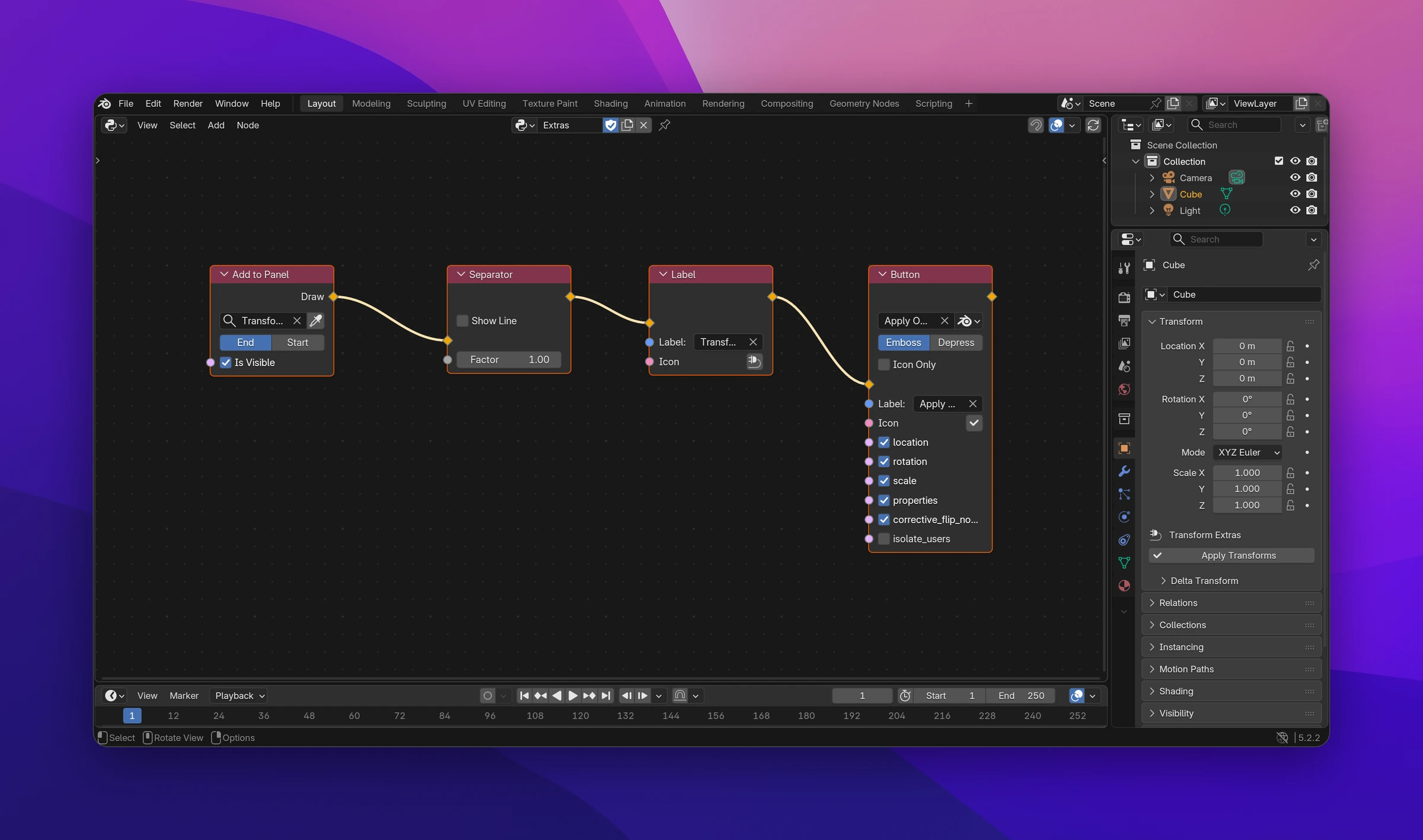
Using it
Add the node for what you want to extend: Add to Menu for a menu (including right-click menus), Add to Panel for a panel, Add to Header for an editor's header.
Click the eyedropper next to the field (Pick in the Interface). Every menu, panel or header gets a red Pick '...' entry. Open the one you want in Blender and click its entry. Cancel Picker on the node removes the entries again without picking.
Instead of the picker, you can search the field: it lists every menu, panel or header by its title and class name, e.g. Object [VIEW3D_MT_object]. With Preferences › Interface › Display › Python Tooltips on, hovering a menu in Blender shows its class name, which you can also type into the field.
Settings
| Setting | |
|---|---|
| Menu / Panel / Header field | What to draw into |
| End / Start | Draw after the existing contents (the default) or before them |
| Is Visible | Draws the contents only while it's True, e.g. only for meshes. Connect a condition |
| Draw | The contents to add |
In a header, everything is drawn in a row, so the nodes sit side by side. In a menu they're menu entries, below each other.
Menus, panels and headers of other add-ons can be extended the same way, while those add-ons are enabled. Several Add to nodes can draw into the same target.
Limitations
- Only menus, panels and headers defined in Python can be extended, and the search lists only those. A few of Blender's are built in C, like the Transform panel in the 3D Viewport sidebar's Item tab, and can't be.
- The node shows an error when its target doesn't exist, for example when the add-on that defines it is disabled.
- What you add draws with the target's context: in a panel of the Material tab,
context.materialis the shown material. In a menu or header, it's the editor's context.
The Draw flow becomes a function, added to the target class in register() and removed in unregister():
def draw_object_menu(self, context):
    self.layout.label(text='Hi')


def register():
    bpy.types.VIEW3D_MT_object.append(draw_object_menu)


def unregister():
    bpy.types.VIEW3D_MT_object.remove(draw_object_menu)
Start uses prepend() instead of append(). Is Visible adds if not ...: return at the top of the function.