Shortcuts
Run operators or open menus with keyboard shortcuts.
A Shortcut node (Add › Operators) adds a keyboard shortcut that runs an operator or opens a menu. It goes into Blender's keymap like Blender's own shortcuts, so users can change it or turn it off in Preferences › Keymap.
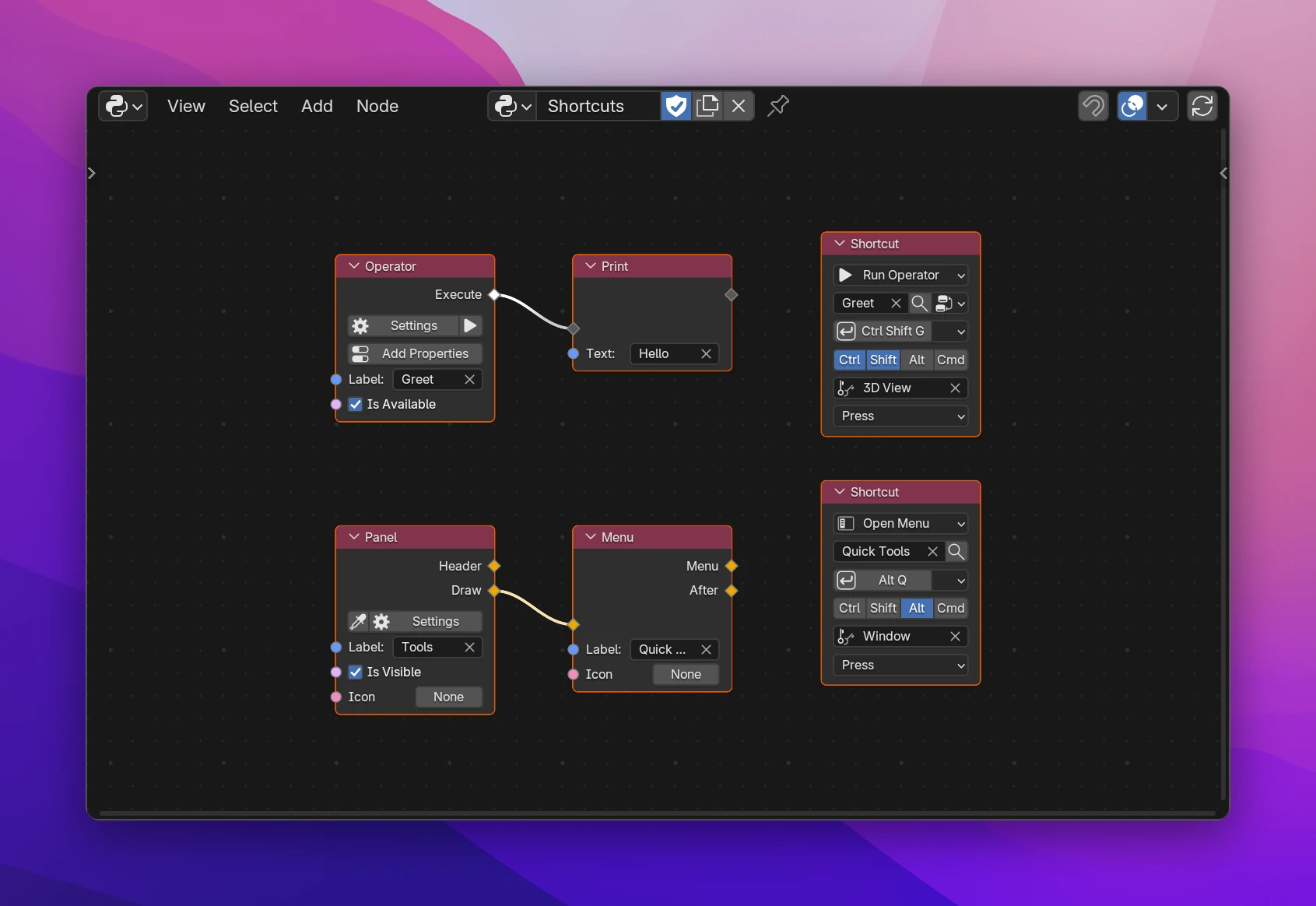
Setting one up
Choose what it does in the first dropdown: Run Operator or Open Menu.
Pick the operator or menu. For Run Operator, the button next to the field switches between your operators and Blender's, like on Run Operator. Open Menu opens one of your Menu, Pie Menu or Panel nodes at the mouse (see Menus).
Click the key button (it shows the current shortcut, e.g. "Ctrl Shift G") and press the keys you want, modifiers included. Esc cancels. The dropdown next to it lists every key, mouse button and wheel direction if you'd rather pick one.
Set Where it works, and when it runs.
Settings
| Setting | |
|---|---|
| Key button | Records the shortcut: click it, then press the keys (the status bar says "Press the shortcut, Esc to cancel"). Modifier keys alone, mouse moves and timers are ignored |
| Key dropdown | The key, picked from a list (default A) |
| Ctrl, Shift, Alt, Cmd | Modifier keys that must be held. Cmd is the Windows key on Windows and Linux |
| Where | The keymap it goes into: Window works everywhere, an editor (3D View, Node Editor, Image, Text, ...) only over that editor, a mode (Object Mode, Mesh for mesh Edit Mode, Sculpt, Pose, ...) only in that mode. Type to search. A name that isn't a keymap turns red and gives an error |
| Event | When it runs: Press, Release, Click (pressed and released without moving), Double Click, Click Drag |
With Run Operator, the operator's properties are inputs of the node, the same as on Run Operator. The shortcut runs the operator with these values.
Things to know
- Input values are fixed when the add-on is enabled: the keymap stores them. A connected node is evaluated once at that moment, not each time the key is pressed. Nodes that only have a value while an operator runs (like Event Info) give nothing there; the node then warns that the operator's default is used.
- Shortcuts run operators as if they were clicked: dialogs and file browsers open, modal operators start.
- A shortcut can hide one of Blender's with the same keys in the same place. Check Preferences › Keymap (search by key) for conflicts, and prefer keys with modifiers.
- Shortcuts appear in Preferences › Keymap under the keymap you picked.
Each Shortcut is one line in the add-on's register():
def register():
    utils.add_shortcut("3D View", "VIEW_3D", "my_addon.greet", "G", ctrl=True, shift=True)
utils.add_shortcut adds a keymap item to bpy.context.window_manager.keyconfigs.addon, sets the operator's properties on it, and remembers it; the add-on's unregister() removes it again. Open Menu shortcuts run wm.call_menu, wm.call_menu_pie or wm.call_panel with the menu's name. In background mode (blender -b) there is no add-on keyconfig and no shortcut is added.