Creating operators
Add your own operators, the actions behind buttons, menus and shortcuts.
An Operator node (Add › Operators) is an action of your add-on. Whatever you connect to its Execute output runs when someone clicks a Button for it, presses its Shortcut, picks it in the operator search (F3) or when a Run Operator node runs it. The play button on the node runs it right away, which is the quickest way to test it.
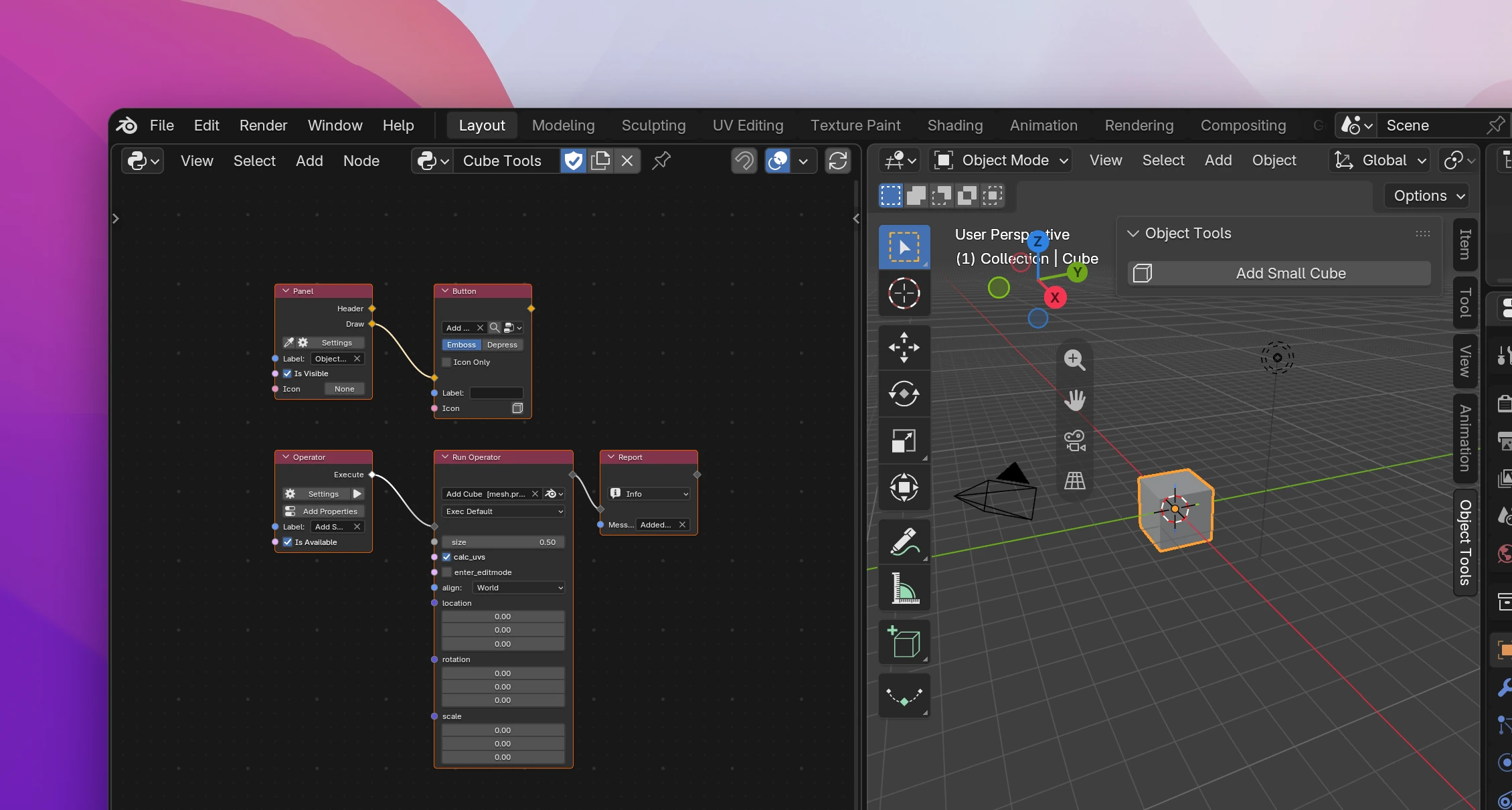
The node
| Input | |
|---|---|
| Label | The operator's name: the text on its buttons, its name in the operator search and in Edit › Undo History. Its Python name comes from it: "Add Small Cube" in an add-on called Object Tools becomes object_tools.add_small_cube |
| Is Available | Whether the operator can run now. When it's off, buttons for it are grayed out and its shortcut does nothing. Connect a condition, e.g. whether there is an active object |
| Output | |
|---|---|
| Execute | What the operator does |
| Invoke | Only with Invoke Type Invoke: runs first when it's started from the interface, then Execute runs |
| Start, Modal, End | Only with Invoke Type Modal, see Modal operators |
| Draw | Only with Properties Dialog and Properties Popup: lays out the dialog yourself, see Popups and dialogs |
| Event | With Invoke and Modal: the mouse or key event that started it (and, in a modal operator, the current one) |
| File Path, File Paths, Folder | With File Browser: what was picked, see Files and drag and drop |
| One output per property | The value of each of the operator's properties |
Properties
An operator can have properties: settings like a count or a name, shown in its dialog and in the Adjust Last Operation panel after it ran. Add them with Add Properties on the node; they're listed on the node and in the sidebar's Node tab. Each one becomes an output of the node in its flows, and an input on Button, Shortcut and Run Operator nodes that run it, so each button can run it with other values.
Settings
Settings on the node opens the Operator Settings popup:
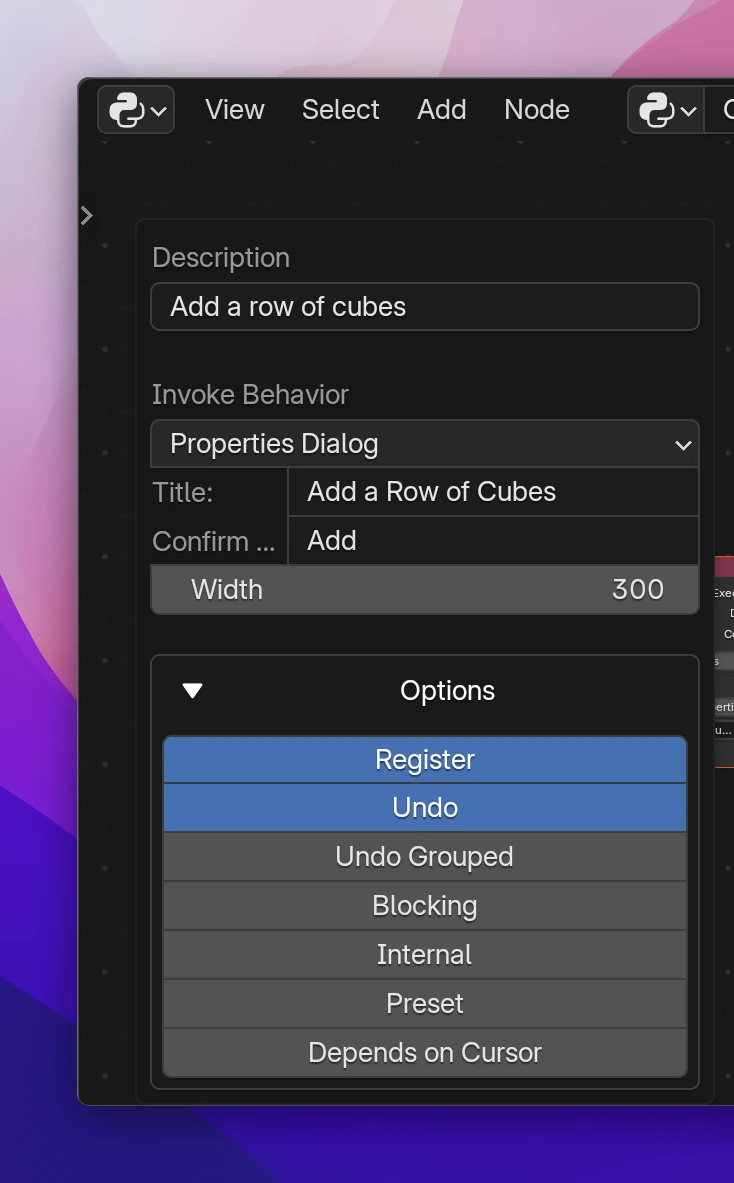
- Description is the tooltip of buttons for the operator.
- Invoke Behavior (the Invoke Type) decides what happens when it's started from the interface: a button, a menu, a shortcut, the search.
| Invoke Type | What happens |
|---|---|
| Execute | Runs Execute right away (the default) |
| Invoke | Runs the Invoke flow first, with the Event that started it (e.g. the mouse position), then Execute |
| Properties Dialog | A dialog with the properties and an OK button, see Popups and dialogs |
| Properties Popup | The properties in a popup; it runs each time one of them changes |
| Confirm | Asks first: a message and a confirm button |
| File Browser | Opens Blender's file browser, then runs with the picked file or folder, see Files and drag and drop |
| Modal | Keeps running and gets every mouse and key event until it ends, see Modal operators |
Run from Python or from a Run Operator node with its default context (Exec Default), an operator skips all of this and runs Execute directly with the property values it's given.
Options
Options in the popup are Blender's operator flags (bl_options):
| Option | Default | |
|---|---|---|
| Register | On | Shows it in the operator search and the Adjust Last Operation panel |
| Undo | On | Adds an undo step after it ran |
| Undo Grouped | Off | One undo step when it runs several times in a row |
| Blocking | Off | Blocks other operators while it runs |
| Internal | Off | Hides it from the operator search |
| Preset | Off | Adds a preset menu for its properties to its dialog |
| Depends on Cursor | Off | Started from a menu or the search, it first waits for a click in the editor, with the Cursor you pick. For operators that use the mouse position |
Ending early
Return (Add › Operators › Modal) ends the operator's flow where it is. The node's title shows its choice:
- Finish ends it as finished: what it did gets an undo step.
- Cancel ends it as cancelled: no undo step and no Adjust Last Operation panel. Changes it made before stay, so cancel before you change anything.
- Pass Through and Keep Running are for modal operators.
Without a Return node, an operator finishes when its flow ends. A Return in the Invoke flow ends the operator before Execute runs.
Reports
Report (Add › Operators) shows a Message in the status bar and in the Info editor. Pick the type on the node:
| Type | |
|---|---|
| Info | A plain message |
| Warning | A warning, shown in yellow |
| Error | An error, also shown as a popup at the mouse |
Reports belong to an operator. Use the node in an operator's flows, or in a function called from one. Elsewhere (a panel's draw flow, an event, a timer) there is no operator to report from, and the message is printed to the console instead, with its type in front ("Warning: ...").
The operator from the screenshot, in an add-on called Object Tools:
class OBJECT_TOOLS_OT_add_small_cube(bpy.types.Operator):
    bl_idname = "object_tools.add_small_cube"
    bl_label = "Add Small Cube"
    bl_options = {"REGISTER", "UNDO"}

    def execute(self, context):
        bpy.ops.mesh.primitive_cube_add(size=0.5)
        utils.report(self, "INFO", "Added a small cube")
        return {"FINISHED"}
utils.report calls self.report() when there's an operator, print() otherwise. Properties become annotations (count: bpy.props.IntProperty(name="Count")), Description becomes bl_description, a connected Is Available becomes a poll() class method. Invoke adds invoke(self, context, event) running the Invoke flow, then return self.execute(context). A Return node writes return {"FINISHED"} or return {"CANCELLED"}.