Popups and dialogs
Ask for values or a confirmation before an operator runs.
An operator can ask before it runs: a dialog with its properties and an OK button, or a question like "Delete all objects?". Set the Operator node's Invoke Type under Settings to one of the popup types. The popup opens when the operator is started from the interface: a button, a menu, a shortcut or the search.
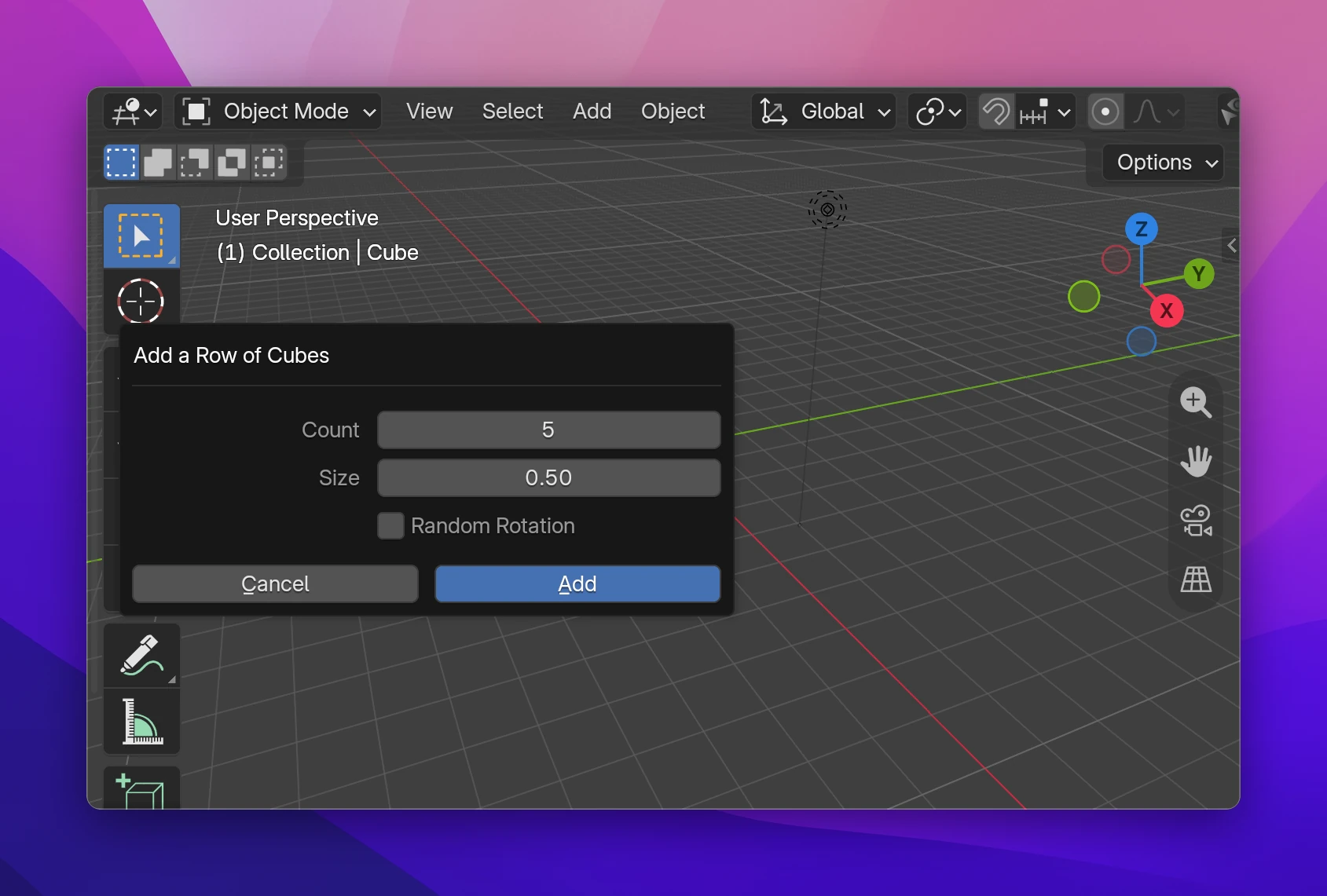
Asking for values
Add the values you want to ask for as properties of the operator: Add Properties on the node. Their defaults are what the dialog shows first.
Open Settings and set Invoke Behavior to Properties Dialog.
Use the properties in Execute: each one is an output of the Operator node. Execute runs when OK is clicked.
Popup types
| Invoke Type | Shows | Settings |
|---|---|---|
| Properties Dialog | The properties with Cancel and OK buttons. Execute runs on OK | Title (default: the operator's label), Confirm Button text (default "OK"), Width in pixels (default 300) |
| Properties Popup | The properties in a popup without buttons. Execute runs each time one changes, undoing the previous run, so people see the result while they adjust it. Needs the Register and Undo options | |
| Confirm | A question with a confirm button; Execute runs when it's clicked. Moving the mouse away closes it without running | Title, Message, Confirm Button text |
Your own layout
By default the dialog lists all properties. With Properties Dialog or Properties Popup, the Operator node has a Draw output: connect interface nodes to it and they're drawn instead. Draw the operator's own properties with the field nodes (pick the property in the field; on the operator's own properties the data input is hidden), and add labels, rows, boxes, icons. See Fields and buttons.
Things to know
- Dialogs only open when the operator is started from the interface. Run from Python, or from a Run Operator node with Exec Default, it runs Execute right away with the values it's given. Set Run Operator's context to Invoke Default to show the dialog from a flow.
- A Button follows its layout: inside a Set Layout State with Buttons Run Execute, its operator skips the dialog. The default shows it.
- After the operator ran, its properties also show in the Adjust Last Operation panel (bottom left of the 3D Viewport) if Register and Undo are on, and changing them there runs it again.
The popup types are an invoke() method calling Blender's window manager:
class OBJECT_TOOLS_OT_add_cubes(bpy.types.Operator):
    bl_idname = "object_tools.add_cubes"
    bl_label = "Add Cubes"
    bl_options = {"REGISTER", "UNDO"}
    count: bpy.props.IntProperty(name="Count", default=5)

    def invoke(self, context, event):
        return context.window_manager.invoke_props_dialog(
            self, title="Add a Row of Cubes", confirm_text="Add"
        )

    def execute(self, context):
        ...
        return {"FINISHED"}
Properties Popup calls invoke_props_popup(self, event), Confirm calls invoke_confirm(self, event, title=..., message=..., confirm_text=...). A connected Draw flow becomes the operator's draw(self, context) method, drawing into self.layout.