Running operators
Run your own operators or any of Blender's from a flow.
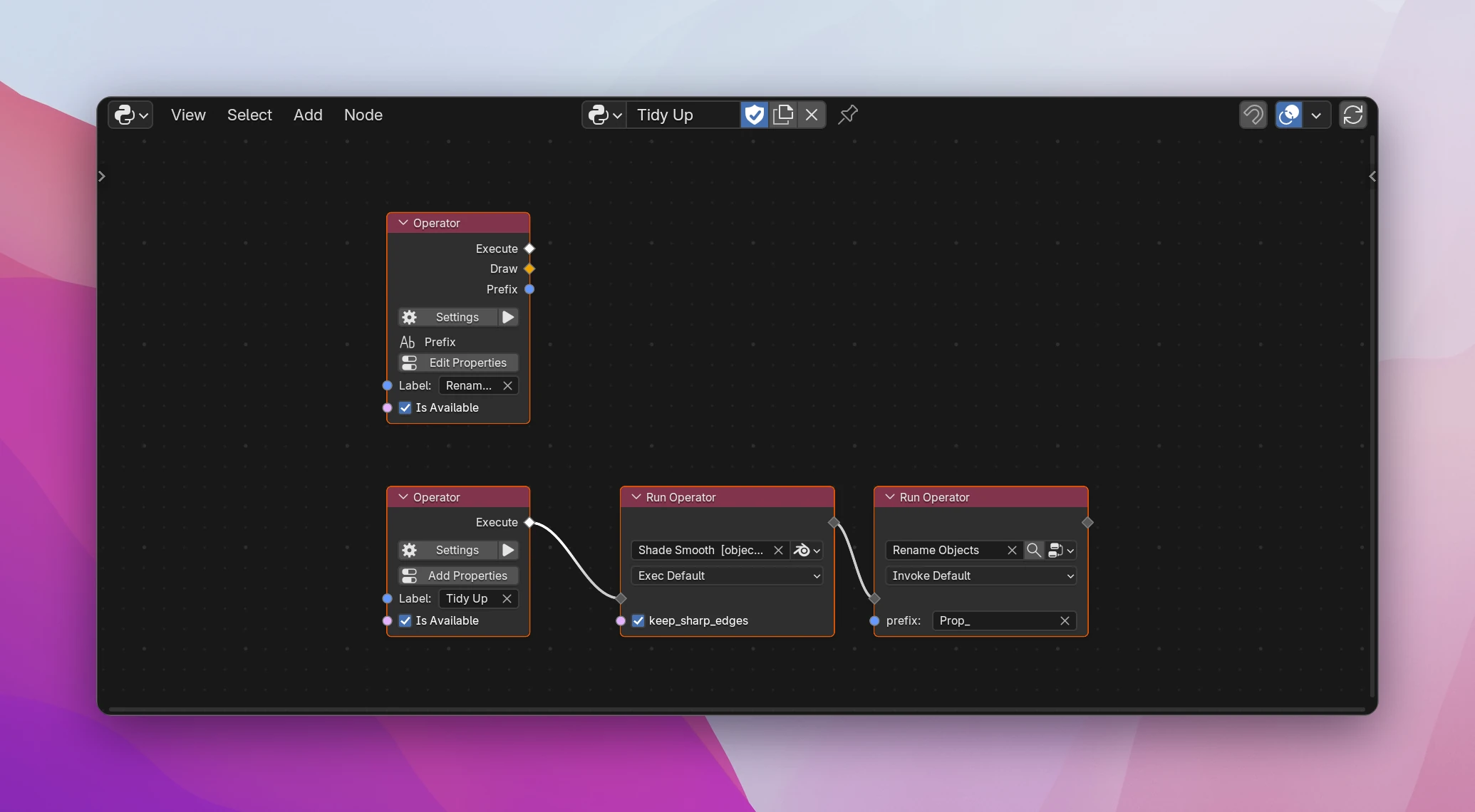
Run Operator (Add › Operators) runs an operator where it sits in a flow: one of your Operator nodes, or any of Blender's thousands of operators (Add Cube, Shade Smooth, Apply Modifier, Save). Most things you can click in Blender can be done this way. The operator's settings become inputs of the node.
Picking the operator
The field at the top of the node picks the operator. The button next to it switches what the field lists:
- This Add-on (node tree icon): your Operator nodes, picked by name. Renaming the operator keeps the link.
- Blender (Blender icon): Blender's operators. Type to search by name or by Python name; the field shows both, e.g.
Shade Smooth [object.shade_smooth]. A name that matches no operator turns red.
To find the Python name of something you click in Blender, hover the button with Preferences › Interface › Python Tooltips on, or look at the Info editor after clicking it.
Inputs
After Program come one input per property of the operator, named like the property in Python (size, location, action). Leave an input alone to use the operator's own default: unchanged, unconnected inputs aren't passed at all. That matters for some of Blender's operators. Add Cube places the cube at the 3D cursor unless you set location.
Enum properties show a dropdown of their options. A few kinds of properties get no input, so the operator uses its default for them:
- hidden properties (Blender's operators have some, e.g. for internal state);
- data properties and collections (pointers, lists of items);
- enums that take a set of options, and on/off or number arrays (except vectors and colors with 2 to 4 values);
- Group and Collection properties of your own operators.
Context
The dropdown below the operator is how it runs:
| Context | |
|---|---|
| Exec Default | Runs its Execute right away with the given values: no dialog, no file browser (the default) |
| Invoke Default | Runs it as if it was clicked in the interface: dialogs, file browsers and modal operators start |
| Exec Region Win / Invoke Region Win | The same, in the main region of the current area |
| Exec Area / Invoke Area | The same, in the current area |
| Exec Screen / Invoke Screen | The same, in the screen |
Use Invoke Default to show an operator's dialog from a flow, e.g. to start one of your modal operators from another operator.
Things to know
- Many of Blender's operators only work in one editor or mode, and stop with an error like
context is incorrectotherwise. Shade Smooth needs objects to be selected; most mesh operators need Edit Mode; view operators need a 3D Viewport. Run them from an operator started in that editor, or wrap them in a Temp Override node. - To draw a button instead of running the operator from a flow, use a Button. It has the same picker and inputs.
Each Run Operator is one bpy.ops call. The screenshot's Tidy Up operator:
def execute(self, context):
    bpy.ops.object.shade_smooth()
    bpy.ops.object_tools.rename_objects("INVOKE_DEFAULT", prefix="Prop_")
    return {"FINISHED"}
The context is left out for Exec Default, and keep_sharp_edges is left out because it's still at its default.