Conditions
Run or draw different nodes depending on a value with If/Else and Switch.
If/Else runs its Then output when Condition is true and its Else output when it's false. Switch does the same for more than two cases. Both work in code (an operator, an event) and in the interface (a panel, a menu), where they decide what gets drawn.
If/Else
Add Add › Flow › If/Else and link a flow into it, e.g. an operator's Execute or a panel's Draw.
Connect a true/false value to Condition: a checkbox property, a Compare node, Is Object Type, Is in Mode.
Link what should happen when it's true to Then, and what should happen otherwise to Else.
Link what comes next, for both cases, to After.
Then and Else can stay empty. An If/Else with only Then connected is a plain "if".
| Socket | |
|---|---|
| Condition (input) | A Boolean. Anything else is tested the way Python does: 0, "", an empty list and None count as false |
| Then | Runs when Condition is true |
| Else | Runs when it's false |
| After | Runs after either branch |
Switch
A Switch compares its Value with a list of cases and runs the output of the first case that matches. Default runs when no case matches, and After runs in every case once the branch is done.
- New Switch nodes have two cases,
AandB. Type in a case's field on the node to rename it; the output takes the same name. - Add Case at the bottom of the node adds a case, and the X next to a case removes it (with its output and links).
- The values are compared as text: Value is turned into a string first, so the number
2matches a case named2. An enum property's current item ('MESH','OBJECT') matches a case with its identifier,MESH.
Use a Switch on an enum property to show different settings for each choice, or on a mode string to react to the mode Blender is in.
In panels and menus
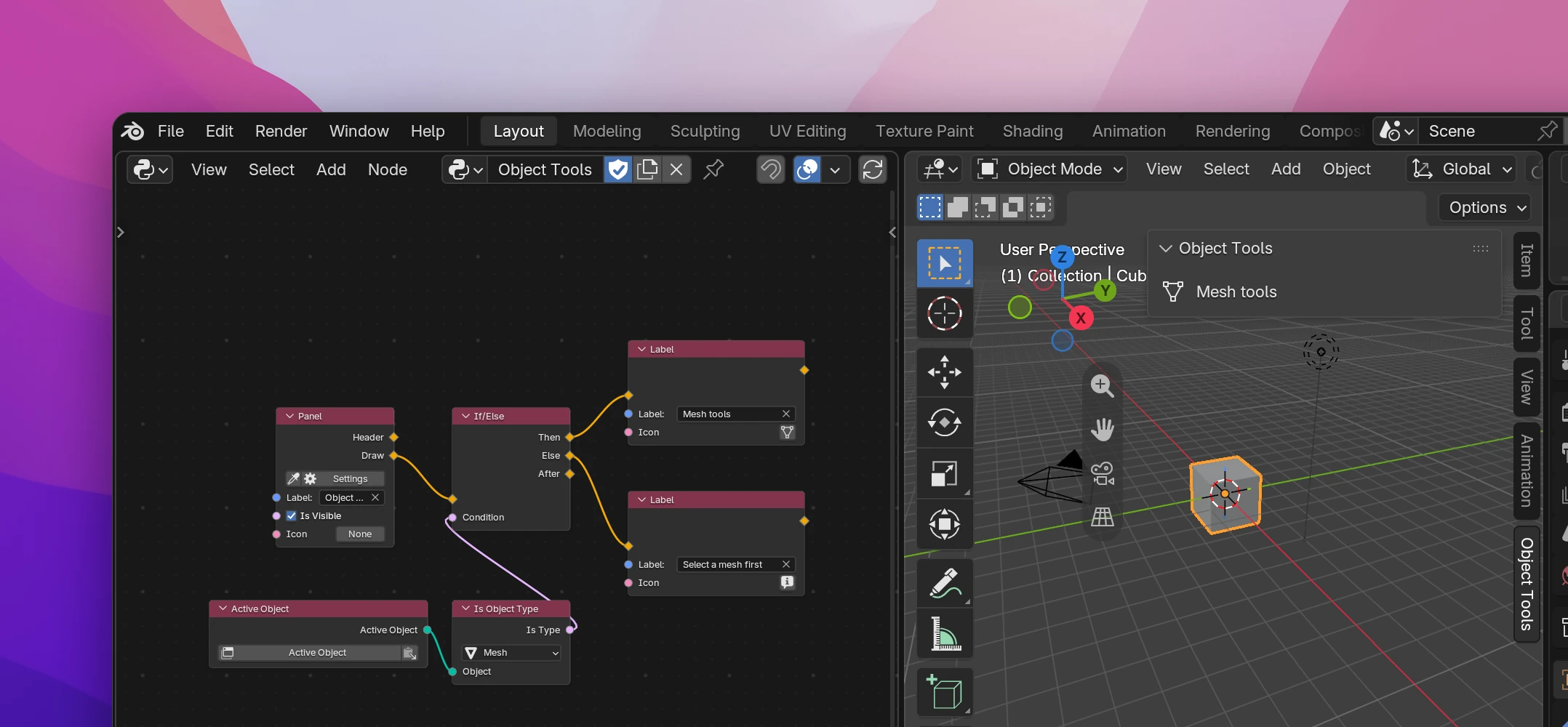
Linked after an interface flow (an orange one, like a panel's Draw or a Row), If/Else and Switch turn orange too and draw only the matching branch. Their outputs connect to interface nodes, and After continues drawing below.
Panels redraw all the time, so the branch follows the condition live: the label in the screenshot changes to "Select a mesh first" as soon as you click a light.
The node takes its kind from the flow linked to its input, or from what its outputs link to while the input is empty. To hide a whole panel or block an operator instead of a part of it, connect the condition to the panel's Is Visible or the operator's Is Available (see Panels and Creating operators).
Values without a flow
To pick one of two values (not two flows), use Switch Data. It has no flow sockets and works wherever a value goes.
The panel in the screenshot:
def draw(self, context):
    if getattr(context.active_object, "type", None) == "MESH":
        self.layout.label(text="Mesh tools", icon="MESH_DATA")
    else:
        self.layout.label(text="Select a mesh first", icon="INFO")
A Switch stores the value as a string once, then tests the cases in order. Cases with nothing connected are left out when Default isn't connected either:
value = str(context.object.type)
if value == "MESH":
    ...
elif value == "CURVE":
    ...
else:
    ...  # Default
# After