Comparing and logic
Compare values, combine true/false results and pick a value by a condition.
Compare checks two values and gives a Boolean: True or False. Connect it to the Condition of an If/Else to run different nodes, or to a Switch Data to pick a value. Boolean Math and Invert Boolean combine and flip these results.
Compare
Compare (Add › Data) compares A with B and gives Result. Pick the comparison in the dropdown on the node:
| Option | True when |
|---|---|
| = | A equals B |
| ≠ | A doesn't equal B |
| < / ≤ | A is less than (or equal to) B |
| > / ≥ | A is greater than (or equal to) B |
A and B are Data inputs: they take any value, but have no field to type into. Connect both, e.g. a value from a Value node like Integer or String. An unconnected input is None.
= and ≠ work with any values: numbers, texts, objects. Comparing an enum property with one of its items needs the item's identifier, like "CUBE" (see Enum Item). The other comparisons need values that have an order: numbers with numbers, texts with texts (alphabetically, upper case before lower case).
To check whether a text contains another text, use Substring In String. For lists, use List Contains.
Boolean Math
Boolean Math (Add › Data › Boolean) combines its two Boolean inputs:
- And: True only if both are True.
- Or: True if at least one is True.
Chain several nodes for more than two conditions.
Invert Boolean
Invert Boolean (Add › Data › Boolean) turns True into False and False into True. Use it for "if not": "if the object is not a mesh".
Switch Data
Switch Data (Add › Data) gives True when Condition is True, and False otherwise. Pick the type of the values in the dropdown on the node (String, Float, Blender Data, ...); the False, True and Result sockets change to it.
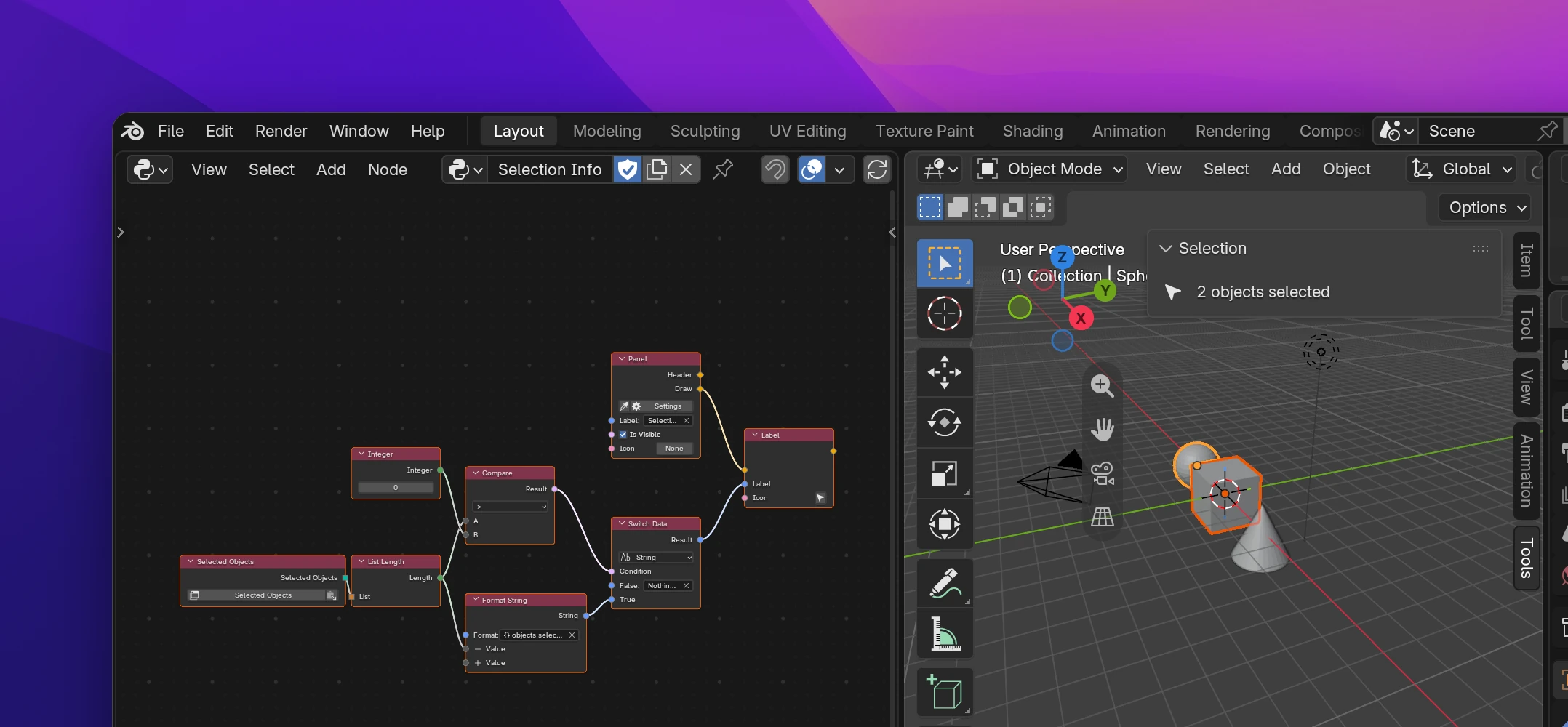
It picks a value without a flow. Where an If/Else would need two branches with a node each, one Switch Data feeds one input: the label in the screenshot shows "Nothing selected" when the count is 0.
Only the chosen value is computed. In the screenshot, the Format String connected to True only runs when something is selected.
Limitations
- <, ≤, > and ≥ raise an error when the add-on runs if the values have no order: a number with a text, two objects, or an unconnected input (
None). - Floats can be off by tiny amounts after calculations:
0.1 + 0.2is0.30000000000000004, not0.3. Compare floats with < / >, or round them first with Round Float.
Each node becomes a Python expression where its result is used. The panel in the screenshot:
def draw(self, context):
    self.layout.label(
        text=f"{len(context.selected_objects)} objects selected"
        if len(context.selected_objects) > 0
        else 'Nothing selected',
        icon='RESTRICT_SELECT_OFF',
)| Node | Python |
|---|---|
| Compare | a == b, a != b, a < b, a <= b, a > b, a >= b |
| Boolean Math | a and b, a or b |
| Invert Boolean | not a |
| Switch Data | true_value if condition else false_value |