Text
Build, split, change and search strings.
The string nodes are in Add › Data › String. Their outputs connect to anything that takes text: labels, Print, Report, property values. "String" is the programming word for a text.
Numbers and other values connected to a String input are converted with str(). Blender data gives its name: an object connected to a label shows Cube.
Putting values into text
Format String puts values into a text. Write the text in Format with a {} where a value goes, then connect one Value per {}, in order. Connecting the last Value input adds another one.
| In Format | Gives |
|---|---|
{} items | 3 items |
{:.2f} m | A float with two decimals: 1.50 m |
{:03} | A number padded with zeros: 007 |
{:.0%} | A factor as a percentage: 0.7 gives 70% |
{{ and }} | A literal { and } |
The node shows "Connect a value for each " while there are fewer values than {}. Format can also be connected, e.g. to a text the user types; then the values fill in when the add-on runs.
The Value inputs are Data inputs: they keep the value as it is. Blender data shows as <bpy_struct, Object("Cube") at 0x...> there, so connect its name (a Blender Data node with the path name) instead.
Combine Strings joins its String inputs with Separator between them: Red and Green with the separator , give Red, Green. Connecting the last String input adds another one.
Splitting and joining
| Node | |
|---|---|
| Split String | Splits String into a List at each Separator. Without a separator, it splits at spaces and line breaks and drops empty parts. Max Splits limits the number of splits (-1: no limit), the rest stays in the last item |
| Join List | Joins the items of List into one String, with Separator between them (, by default). Items that aren't text are converted with str() |
Split, change the list, then join again: that's how you work on words or lines one by one.
Changing text
| Node | |
|---|---|
| Replace String | Replaces every occurrence of Find in String with Replace. Case matters: cube doesn't find Cube |
| Slice String | Length characters from Start. The first character is at 0. Length 0 takes everything to the end. Negative positions count from the end: Start -3 is the last three characters |
| Change Case | UPPER CASE, lower case, Title Case (every word capitalized), Capitalize (only the first letter upper case, the rest lower) or sWAP cASE |
| Trim String | Removes spaces, tabs and line breaks at the Both ends, the Start or the End. With Characters, it removes those characters instead: _- trims underscores and dashes |
| Pad String | Fills String up to Length characters with Fill (one character, 0 by default). Right puts the text on the right (007), Left on the left (7__ with the fill _), Center in the middle. Longer texts stay as they are |
Searching text
| Node | |
|---|---|
| String Length | The number of characters |
| Find in String | Index: where Find first appears in String (0 is the start, -1 if it doesn't appear). Count: how often it appears |
| Substring In String | Whether String Contains, Starts With or Ends With the Substring (pick in the dropdown). Turn off Case Sensitive to ignore upper and lower case. The output is named Contains for all three |
The nodes become Python's string methods:
| Node | Python |
|---|---|
| Format String | An f-string: f"Shot_{name}.png". With a connected Format, or numbered or named fields like {0}: format.format(...) |
| Combine Strings | separator.join([a, b]) |
| Split String | text.split(separator or None), with Max Splits: text.split(separator or None, 2) |
| Join List | separator.join(str(i) for i in items) |
| Replace String | text.replace(find, replace) |
| Slice String | text[start:], with a Length: text[start:(start + length) or None] |
| Change Case | text.upper(), .lower(), .title(), .capitalize(), .swapcase() |
| Trim String | text.strip(), .lstrip(), .rstrip(), with Characters as argument |
| Pad String | text.rjust(3, '0'), .ljust(), .center() |
| String Length | len(text) |
| Find in String | text.find(find) and text.count(find) |
| Substring In String | substring in text, text.startswith(substring), text.endswith(substring); with .lower() on both when not case sensitive |
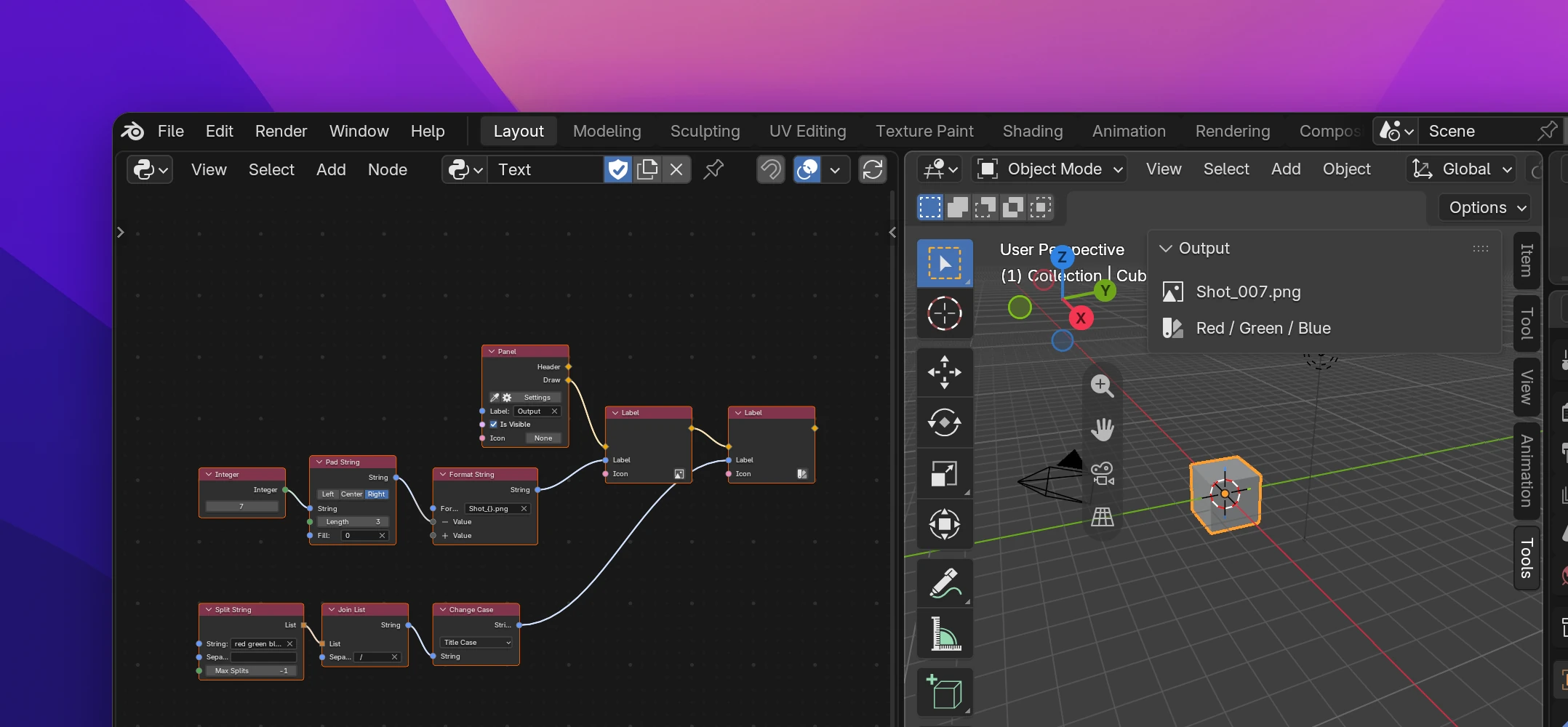
The panel in the screenshot:
def draw(self, context):
    self.layout.label(text=f"Shot_{str(7).rjust(3, '0')}.png", icon='FILE_IMAGE')
    self.layout.label(
        text=' / '.join(str(i) for i in 'red green blue'.split('' or None)).title(),
        icon='COLOR',
    )