Draw nodes
Lines, points, shapes, text, images and objects to draw in a Viewport Draw flow.
Draw nodes go in the Draw flow of a Viewport Draw node, one after another. Each draws once per redraw, in the order of the flow, so later nodes draw over earlier ones.
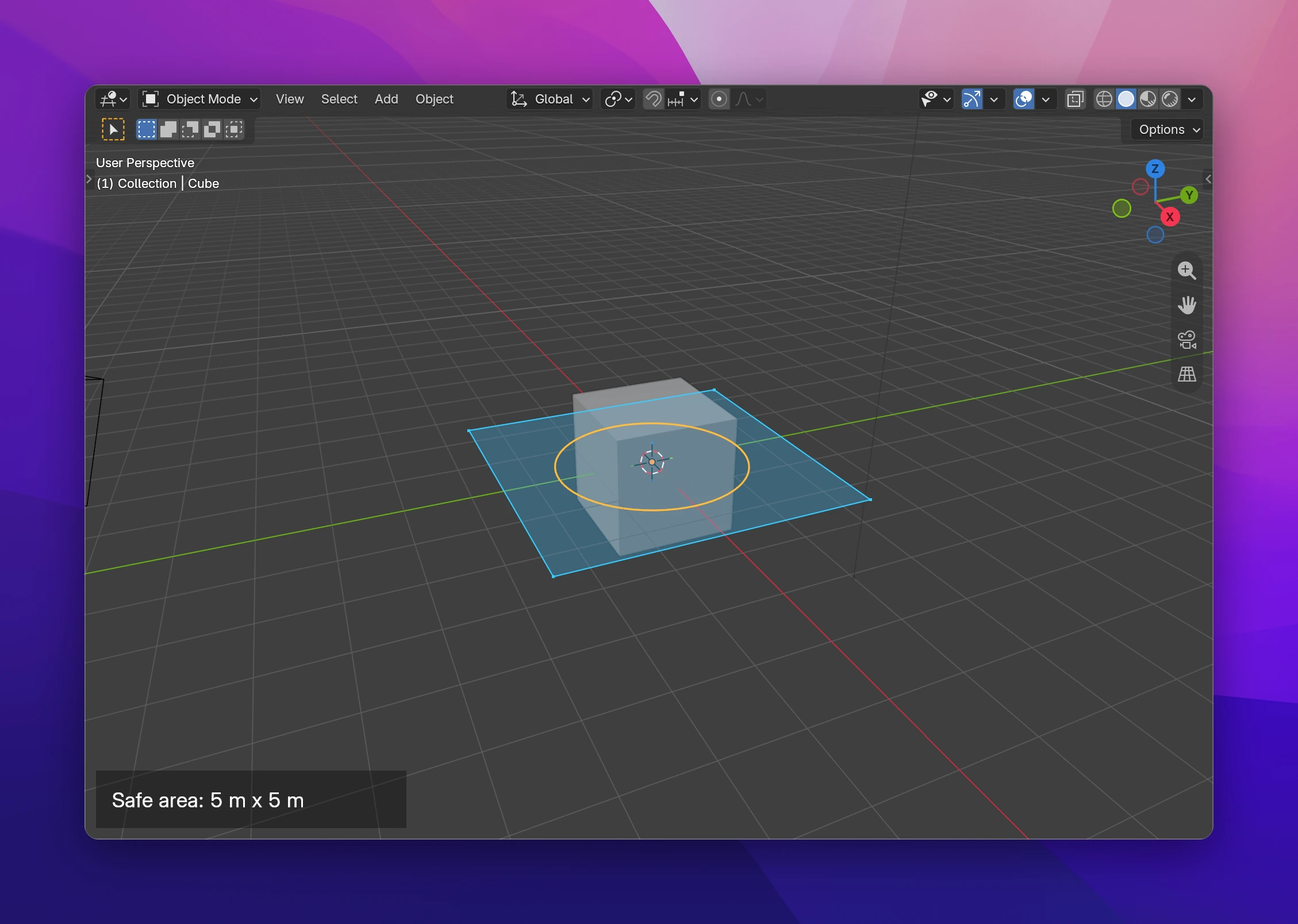
Above, the scene part is Draw Polygon, Draw Points, Draw Lines (Closed) and Draw Circle in a Viewport Draw set to In the Scene, all using the same four corner points from a Python Expression: [(-2.5, -2.5, 0), (2.5, -2.5, 0), (2.5, 2.5, 0), (-2.5, 2.5, 0)]. The box in the corner is a Draw Rectangle and a Draw Text in a second Viewport Draw set to On Top.
Points and colors
- Points inputs take a list of points. Each point is a vector, a tuple or a list:
(x, y, z)for drawing In the Scene,(x, y)in pixels for drawing On Top (a missing z counts as 0). Build the list with a Python Expression, list nodes, or from data, like the vertices of a mesh. - Pixel positions start at the bottom left corner of the editor's main region:
(20, 20)is near the bottom left. - Color has alpha: lower it to draw see-through shapes.
- Width and Size are in pixels.
Draw Lines
Lines through the Points.
| Lines | Connected: one line through all points. Closed: also back from the last point to the first. Pairs: a separate line for every two points (1 to 2, 3 to 4, ...) |
| Points | The list of points. Fewer than two draw nothing |
| Color | Default white |
| Width | Line width in pixels, default 2 |
Draw Points
A square dot at each of the Points, in Color, Size pixels big (default 6).
Draw Polygon
A filled shape in Color with the Points as its outline, in order. Concave shapes work too. Fewer than three points draw nothing.
Draw Rectangle
A rectangle in pixels, for drawing On Top.
| Fill | On (default): a filled rectangle. Off: only its outline, Width pixels wide |
| Position | The bottom left corner, default (20, 20) |
| Size | Width and height, default (200, 100) |
| Color, Width | Width is only used without Fill |
Draw Circle
| Fill | Off (default): the outline, Width pixels wide. On: a filled disc |
| Center | The middle. In the Scene, a 3D location; On Top, x and y are pixels and z is ignored |
| Radius | In Blender units in the scene, in pixels on top. Default 1, so set it when drawing on top |
| Segments | How many straight pieces make the circle, default 32 |
| Normal | The direction the circle faces in the scene. The default (0, 0, 1) lies flat on the ground, and is what you want on top |
Draw Text
Text in pixels, for drawing On Top.
| Align | Left, Center or Right of Position |
| Shadow | A dark shadow behind the letters, to read the text on any background |
| Text | What to draw. Numbers and other values are turned into text |
| Position | Where the text starts (its baseline), default (20, 20) |
| Size | Font size, default 16. It grows with Blender's Resolution Scale, like the interface does |
| Color | Default white |
To put text next to something in the scene, get its Position from Location to Screen.
Draw Image
An image data-block of the blend file, for drawing On Top.
| Image | The image. Nothing is drawn while it's None |
| Position | The bottom left corner, default (20, 20) |
| Size | Width and height in pixels, default (128, 128). Set it to the image's proportions, it isn't kept for you |
| Opacity | 0 to 1, default 1 |
The image has to be in the blend file. To ship one with your add-on, add it as an asset and load it once, for example with a Python Expression bpy.data.images.load(path, check_existing=True).
Draw Object
An object's mesh, with its modifiers, where it is in the scene. Draw it In the Scene of the 3D Viewport.
| Style | Wireframe (the edges), Faces (filled) or Points (the vertices) |
| Object | The object. None, or an object without geometry (an empty, a light), draws nothing. Curves and text objects are drawn as their mesh |
| Color | Default white |
| Width | Line width for Wireframe, default 1 |
| Size | Point size for Points, default 4 |
Limitations
- Shapes are flat colors: no lighting, no textures except Draw Image.
- Pixel positions and sizes of shapes are pixels of the screen. On high-resolution screens (Retina) they come out smaller than the interface, while Draw Text grows with the resolution scale. Lay out boxes behind text on the screen you target, or scale them with
context.preferences.system.ui_scalein a Python Expression. - Draw Object builds the object's mesh on every redraw. For many objects or dense meshes, this slows down the viewport.
- Draw Text, Draw Rectangle and Draw Image are made for On Top. In the scene they'd lie on the ground plane in Blender units.
Each Draw node is one call of a function in the add-on's utils.py. Only inputs you changed are passed:
utils.draw_lines(points, color=(0.2, 0.8, 1.0, 1.0), mode="LINE_LOOP")
utils.draw_points(points, color=(0.2, 0.8, 1.0, 1.0), size=14.0)
utils.draw_polygon(points, color=(0.2, 0.8, 1.0, 0.15))
utils.draw_rectangle((20.0, 20.0), (540.0, 100.0), color=(0.0, 0.0, 0.0, 0.6))
utils.draw_circle((0.0, 0.0, 0.0), 1.6, color=(1.0, 0.75, 0.2, 1.0), width=3.0, segments=64)
utils.draw_text("Safe area: 5 m x 5 m", (48.0, 56.0), size=18.0, align="CENTER", shadow=True)
utils.draw_image(image, (20.0, 20.0), (128.0, 128.0), opacity=0.5)
utils.draw_object(obj, style="FACES")
Lines use the built-in POLYLINE_UNIFORM_COLOR shader, points POINT_UNIFORM_COLOR, polygons, filled rectangles and circles and object faces UNIFORM_COLOR triangles (mathutils.geometry.tessellate_polygon), images IMAGE_COLOR with gpu.texture.from_image, text blf. Draw Object reads obj.evaluated_get(depsgraph).to_mesh() and transforms the vertices by obj.matrix_world.