Mode and editor checks
Check Blender's mode and an object's type, and find an editor to run code in.
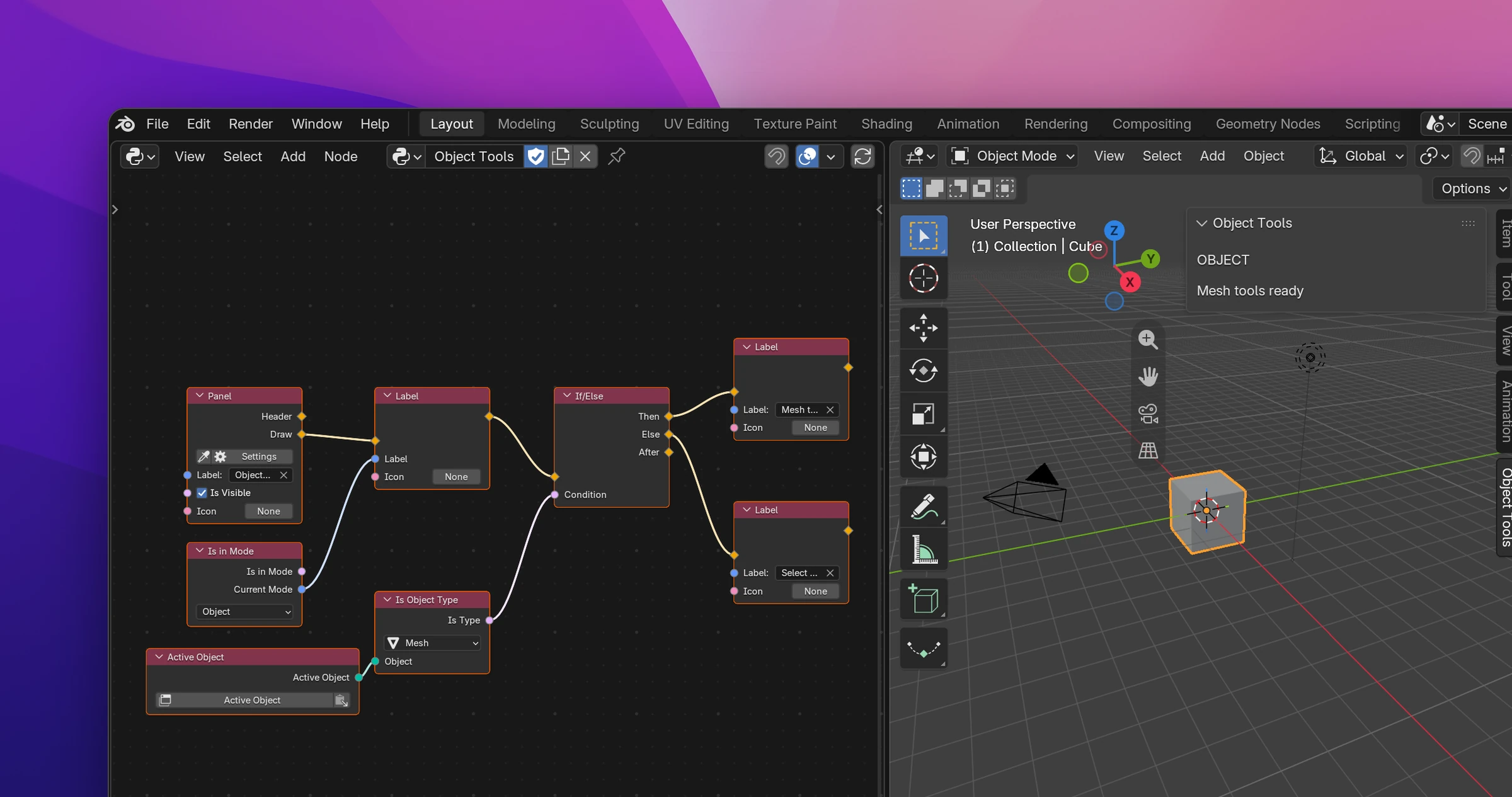
Three nodes answer questions add-ons ask all the time: is Blender in Edit Mode, is this object a mesh, where is the 3D Viewport. Use them to show the right buttons in a panel, to stop an operator before it fails, or to run an operator in an editor that isn't the one the user is in.
Is in Mode
Is in Mode checks the mode Blender is in right now (context.mode).
| Mode (on the node) | The mode to check: Object, Mesh Edit, Sculpt, Pose, Weight Paint, Texture Paint, a Grease Pencil or Curves mode, ... |
| Is in Mode (output) | True while Blender is in that mode |
| Current Mode (output) | The mode's identifier as a String: OBJECT, EDIT_MESH, SCULPT, POSE, PAINT_WEIGHT, ... |
Edit Mode has one mode per kind of data: EDIT_MESH for meshes, EDIT_CURVE for curves, EDIT_ARMATURE for armatures. Is in Mode with Mesh Edit is False while editing a curve.
Is Object Type
Is Object Type checks what kind of object the Object input is: pick Mesh, Curve, Light, Camera, Armature, Empty, Grease Pencil, ... on the node. Is Type is True if it is, and False for None, so it also covers "no active object". Connect an Active Object node (Add › Blender Data › Active Object) to check the object the user has selected last.
Area by Type
Area by Type finds the first editor of a type (pick 3D Viewport, Image Editor, Shader Editor, ...) in the current window.
| Output | |
|---|---|
| Area | The editor's area, None if the window has none |
| Region | Its main region, where its content is drawn |
| Found | Whether there is one |
Many operators only work in their editor: a 3D Viewport operator run from a button in the Image Editor or from a timer fails. Connect Area and Region to the inputs of a Temp Override node (Print and Temp Override) and run the operator in its During flow. Check Found first if the user may not have that editor open.
# Is in Mode (Mesh Edit)
context.mode == 'EDIT_MESH'

# Is Object Type (Mesh)
getattr(context.active_object, 'type', None) == 'MESH'

# Area by Type (3D Viewport): Area, Region, Found
next((a for a in (context.screen.areas if context.screen else ()) if a.type == 'VIEW_3D'), None)
next((r for r in getattr(<area>, 'regions', ()) if r.type == 'WINDOW'), None)
<area> is not None