Node packages
Install zips of extra nodes, or write your own package of nodes.
A node package is a zip of extra nodes for Scripting Nodes. You install it once in the preferences, and its nodes show up in the node editor's Add menu next to the built-in ones. The nodes in a package are written in Python, the same way the built-in nodes are.
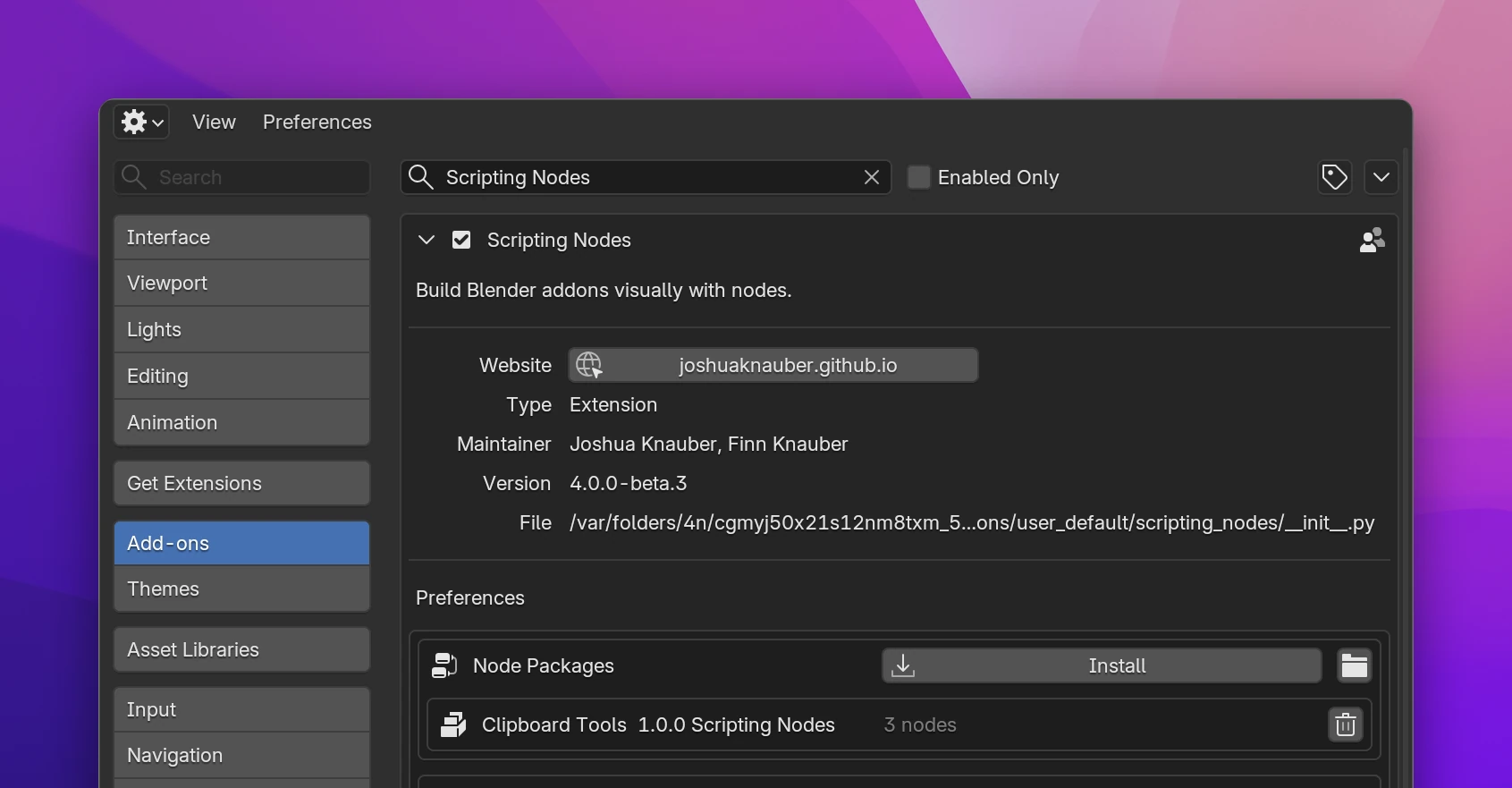
Installing a package
Open Edit › Preferences › Add-ons, find Scripting Nodes and expand it.
In the Node Packages box, click Install and pick the .zip file.
Scripting Nodes reloads itself. The package appears in the list with its name, version, author and the number of nodes it adds. Its nodes are in the Add menu.
To try it, download the example package clipboard_tools.zip. It adds a Clipboard category with three nodes: Copy to Clipboard, Clipboard Text and Clipboard Lines.
A package's Python runs inside Blender as soon as Scripting Nodes loads it, with the same access as any add-on. Install only packages from people you trust.
Managing packages
- Install a zip with the same id again to update a package. The new version replaces the old one.
- The folder button next to Install opens the folder packages are installed in. It is in Scripting Nodes' user folder (
node_packages/inside Blender's extension user folder for Scripting Nodes), so packages stay when you update Scripting Nodes. - The trash button removes a package, after a confirmation. Scripting Nodes reloads without it.
- If a package fails to load, its row shows the error in red, for example
ValueError: oops (node_bad.py, line 1). The other packages and Scripting Nodes itself still load. - A zip that needs a newer Scripting Nodes isn't installed: Install reports
Can't install: Needs a newer Scripting Nodes (node API 2, this one has 1).
Files that use a removed package
A .blend file stores only the node type of each node, so nodes from a package that isn't installed turn into Blender's red "missing" nodes. The node tree they're in stops building until you install the package again. Once it's back, the nodes return with their settings and links.
An exported add-on doesn't need the package. Package nodes write plain Python into the add-on like every other node, so people who install your add-on never need Scripting Nodes or its packages.
Writing a package
The rest of this page is for package authors. A package is a folder of node files, each one a node class written as described in Writing nodes. Read that page first: sockets, emit(ctx), values, flows and names work the same in a package.
Zip layout
text_tools.zip
    nodes.toml                 optional: id, name, version, author, api
    text_tools/                a new Add menu category: Text Tools
        node_slugify.py
        _text.py               helper code, imported by node_slugify.py
    interface/                 same name as a built-in category: merged into it
node_shout.py- The files can sit at the top of the zip, or all inside one folder (
clipboard_tools/nodes.toml, ...). A zip of a folder, like a GitHub download, works too: the single top folder is dropped. - Every
.pyfile in the package and its folders is imported. Files with leading underscores (_helpers.py) are imported as well, so they can hold shared code. __pycache__and__MACOSXentries are skipped. Folders starting with.or__aren't loaded.- The zip needs at least one
.pyfile. Absolute paths and..in a path are refused (Unsafe path in the zip).
nodes.toml
The file is optional. Every field has a default.
| Field | Default | |
|---|---|---|
id | the zip's file name | The folder name and Python package name. Turned into an identifier: lowercase, every run of other characters becomes _ (Text Tools-1.2.zip → text_tools_1_2), package_ in front if it starts with a digit. A package with the same id replaces the installed one |
name | the id in title case (Text Tools) | Shown in the preferences |
version | empty | Shown in the preferences, any text |
author | empty | Shown in the preferences |
api | 1 | The node API version the package is written for, a whole number. See API versions |
id = "clipboard_tools"
name = "Clipboard Tools"
version = "1.0.0"
author = "Your Name"
api = 1
Invalid TOML or an api that isn't a number stops the install with an error.
Index files and sn
Node files get the node API with one import:
from . import snThat works in every folder of the package, at any depth, because the installer writes the index files (__init__.py) that pass sn down:
- The package's top folder gets
from ... import api as sn. - Every other folder gets
from .. import sn. - A folder that has its own
__init__.pykeeps it. If the file doesn't importsn, the installer addsfrom .. import snas its first line.
Don't import from Scripting Nodes' own modules (from ...core import ...). It works today, but only sn is covered by the API version, and the internals change between releases.
What sn has
Everything in sn is public (src/api.py).
| Name | What it is |
|---|---|
sn.ScriptingBaseNode | Base class of every node. Use it with bpy.types.Node: class MY_Node_X(sn.ScriptingBaseNode, bpy.types.Node) |
sn.NodeError | Raise it in emit() when the node isn't set up completely. The message shows on the node |
sn.Flow, sn.Logic, sn.Interface | Flow sockets: program, logic (entry points) and interface (UI drawing) |
sn.String, sn.Boolean, sn.Float, sn.Integer | Value sockets with an editable default (default=) |
sn.Vector, sn.Color | Vector (dimension=3) and color (alpha=False) sockets |
sn.Data, sn.BlendData, sn.List | Any value, Blender data (blend_type="Object", collection=True), lists |
sn.Icon | An icon socket |
sn.Socket | A socket type by its bl_idname, for types chosen at runtime |
sn.Class, sn.Idname, sn.Symbol | Declarations for sn_names(): a class name, an operator idname, a module-level function or variable name |
sn.Reference | A field that points at another node, see Referencing other nodes |
sn.API_VERSION | The node API version of the running Scripting Nodes |
The socket helpers take the same arguments as in Writing nodes: a key, a label, then options like default=, hide=True or dynamic=True.
What ctx offers
emit(ctx) gets the same context the built-in nodes get. The Context reference lists every call. The ones most nodes use:
| Call | Does |
|---|---|
ctx.input(key) | The expression connected to an input, or the socket's own value |
ctx.output(key, expr) | Sets a data output |
ctx.code(template) | Writes statements where the node runs |
ctx.flow(key) | Placeholder for the code connected to a flow output |
ctx.layout | The layout expression in interface flows |
ctx.module(template) | Writes code at module level (functions, classes) |
ctx.imports("import math") | Adds an import to the module |
ctx.helper("log") | Calls one of the shared helpers of the generated add-on (utils.log) |
ctx.var("row") / ctx.name(key) | A free local name / a name declared in sn_names() |
Add menu categories
A package's folders become categories in the Add menu.
- A folder with the name of a built-in category (
interface,data,math,flow,operators, ...) adds its nodes to that menu, next to the built-in nodes. Nested folders work the same:data/list/adds to Data › List. - Any other folder name is a new category. The menu label is the folder name with
_as spaces, in title case:clipboardis Clipboard,text_toolsis Text Tools. New categories come after the built-in ones, sorted alphabetically. - Node files at the top of the package go into a category named after the package's id.
- Nodes in a menu are sorted by
bl_label.
register() and unregister()
Node classes (and any other Blender classes in the package: operators, panels, property groups, menus) are registered for you. A module can also define register() and unregister(). Scripting Nodes calls each package module's register() after its own and the package's classes are registered, and unregister() before it unregisters them. An exception in register() marks the package with an error in the preferences.
If any class of a package fails to register, none of its classes stay registered, and the package shows the error.
A complete node
This is clipboard/node_copy_to_clipboard.py from the example package: a flow node with a Text input.
import bpy

from . import sn


class CT_Node_CopyToClipboard(sn.ScriptingBaseNode, bpy.types.Node):
    """Put text on the system clipboard."""

    bl_idname = "CT_Node_CopyToClipboard"
    bl_label = "Copy to Clipboard"
    sn_inputs = [sn.Flow(), sn.String("text", "Text")]
    sn_outputs = [sn.Flow("next")]

    def emit(self, ctx):
        ctx.code(f"""
            bpy.context.window_manager.clipboard = {ctx.input("text")}
            {ctx.flow("next")}
""")bl_idnameneeds a prefix of your own (CT_here), neverSNA_. Don't change it after you publish the package: saved files store it.bl_labelis the name in the Add menu and on the node.- Every generated module already imports
bpy. Add other imports withctx.imports(...).
A value node sets its outputs instead of writing statements, and node properties work like in any Blender node. Clipboard Lines has a Skip Empty checkbox:
class CT_Node_ClipboardLines(sn.ScriptingBaseNode, bpy.types.Node):
    """The lines of the text on the clipboard, as a list."""

    bl_idname = "CT_Node_ClipboardLines"
    bl_label = "Clipboard Lines"
    sn_outputs = [sn.List("lines", "Lines")]

    skip_empty: bpy.props.BoolProperty(
        name="Skip Empty", description="Leave out empty lines", default=True
    )

    def draw(self, context, layout):
        layout.prop(self, "skip_empty")

    def emit(self, ctx):
        lines = "bpy.context.window_manager.clipboard.splitlines()"
        if self.skip_empty:
            line = ctx.var("line")
            lines = f"[{line} for {line} in {lines} if {line}.strip()]"
        ctx.output("lines", lines)
Changing Skip Empty rebuilds the add-on on its own, no update= needed.
The example package
clipboard_tools.zip is a complete package to start from. Its source is in the repository under examples/node_packages/clipboard_tools/.
| Node | Sockets | Generates |
|---|---|---|
| Copy to Clipboard | Flow in, Text in, flow out | bpy.context.window_manager.clipboard = <Text> |
| Clipboard Text | Text out | bpy.context.window_manager.clipboard |
| Clipboard Lines | Lines out (list), Skip Empty setting | The clipboard's lines, without empty ones when Skip Empty is on |
To work on it, edit the files, zip the folder and install the zip again:
cd examples/node_packages
zip -r ../../website/public/downloads/clipboard_tools.zip clipboard_tools -x '*__pycache__*' '*.DS_Store'
API versions
sn.API_VERSION is 1. New names can be added to sn without a new version. Removing or changing a name raises the version.
Set api in nodes.toml to the version you wrote the package for. Scripting Nodes refuses to install or load a package whose api is higher than its own API_VERSION, with the error Needs a newer Scripting Nodes.
Limitations
-
Package code doesn't ship with the add-on. Nodes only write code. A Python function in your package can help
emit()build an expression (it runs while Scripting Nodes builds the add-on), but the generated add-on can't import it. Code the add-on calls at runtime has to be written into it withctx.module, under a name declared insn_names():def sn_names(self): return [sn.Symbol("function", "twice")] def emit(self, ctx): name = ctx.name("function") ctx.module(f""" def {name}(text): return text * 2 """) ctx.output("result", f"{name}({ctx.input('text')})")Each node gets its own copy of the function (
twice,twice_2, ...), because every node claims its own name. -
Missing packages break the tree. A file that uses nodes of a package that isn't installed shows them as Blender's missing nodes, and their tree doesn't build. The error doesn't say which package is missing yet.
-
Only
snis stable. The shared bases of the built-in nodes (PropertyTargetMixin,OperatorCallMixin, the icon helpers, ...) aren't insn.
A Trigger connected to Copy to Clipboard (Text Hello), then a Print of Clipboard Text, then a Print of the List Length of Clipboard Lines:
class MY_ADDON_OT_trigger(bpy.types.Operator):
    bl_idname = 'my_addon.trigger'
    bl_label = "Trigger"
    bl_options = {"REGISTER", "UNDO"}

    def execute(self, context):
        bpy.context.window_manager.clipboard = 'Hello'
        utils.log(bpy.context.window_manager.clipboard)
        utils.log(str(len([line for line in bpy.context.window_manager.clipboard.splitlines() if line.strip()])))
return {"FINISHED"}Packages are installed to node_packages/<id>/ in Scripting Nodes' extension user folder (bpy.utils.extension_path_user). When Scripting Nodes isn't installed as an extension, the folder is scripting_nodes/node_packages/ in Blender's config folder.
Each package is imported as a subpackage of Scripting Nodes' src.node_packages package, whose __path__ includes the install folder. sys.path and sys.modules aren't changed. Scripting Nodes imports and registers packages after its own classes, one package at a time: a package that raises while importing or registering keeps its error (with the file and line of the package where it happened) and the others still load.
Install and remove run a reload on a timer: Scripting Nodes is disabled and enabled again, so new classes are registered and removed ones are gone.